
Docs
Pixel Flow user manual and best practices
Find scanning, filtering, image details, library, export, account, and industry workflow guidance by task.
Pixel Flow Troubleshooting Center
When you are using Pixel Flow and one step does not produce the result you expected, or the page shows an error message, please do not keep clicking the same function repeatedly right away. Pixel Flow image handling usually goes through several steps: the page image enters the capture feed, you open details from an image card or the context menu, Pixel Flow reads the image file, parses metadata, and then downloads or saves records. Each step can fail or produce an unexpected result for different reasons. Please use the troubleshooting steps in this guide to roughly locate which step is stuck first; once you know that, the next action is much clearer.
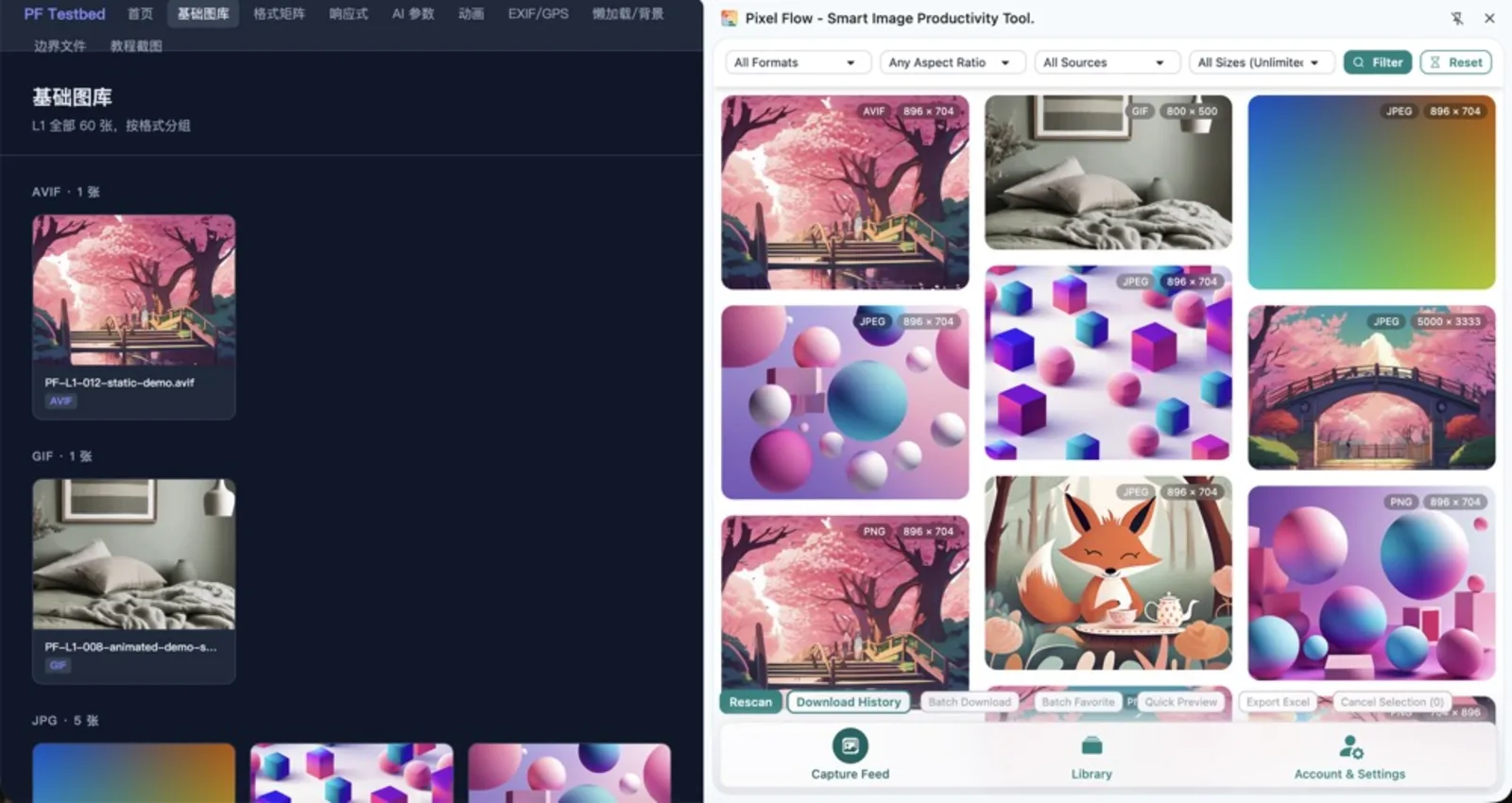
Choose a troubleshooting direction based on what you see
| What you are seeing | What to check first | Continue with |
|---|---|---|
| You can see an image on the page, but it is not in the capture feed | Whether the image has loaded into the current viewport, or whether filters or thresholds hide it | Page images are not entering the capture feed |
| You choose Deep Parse Image from the context menu, but no detail page opens | Whether the pointer is on the image itself, and whether Pixel Flow can read the image clue | Context-menu parsing does not open details |
| The detail page opens, but AIGC parameters are empty | Whether the image file preserved generation parameters, or whether your account can view advanced metadata | AIGC parameters are empty |
| Google reverse image search is unavailable or returns no useful result | Whether the network, image size, or image URL is suitable for search | Google reverse image search is unavailable |
| The download result is a ZIP package instead of one image | Whether this download includes multiple images, source records, a full information sheet, multiple sizes, or frame files | The download result is a ZIP package |
| Favorites, tags, or batch downloads show a quantity limit | Whether you have reached the Free or PRO quota for the current account | Favorite and tag quantity limits |
| You want to restore data after switching devices, reinstalling, or uninstalling | Whether you exported a backup package in advance, and whether the account matches during import | Restore backup data |
These situations are not always bugs
Some situations look like “Pixel Flow did not detect the image,” but the actual reason may come from the web page, the image file, or the current account permissions. You can first judge by what you see inside Pixel Flow:
- The target image does not appear in the capture feed. If the page itself only shows an image placeholder, a gray box, a loading animation, or you cannot visually see the image yet, the image usually has not fully loaded. Pixel Flow can only analyze images that are already visible on the current page and readable by the browser. In this case, scroll to the target area first, wait until the image appears, and then capture again.
- The capture feed only shows some of the images. If the missing image appears after you reset filters, it was probably filtered out by format, aspect ratio, source, size variant, or the collection filter threshold. Loosen the filters first, then decide whether it is really a capture issue.
- The detail page opens, but some analysis cards are empty. If you can see the image size, format, and source page, but camera parameters, AIGC parameters, AI fingerprint results, or similar sections are empty, the image file may not contain that metadata, or the current format may not expose parseable fields. Many platforms remove hidden image metadata during upload, compression, conversion, or publishing.
- The page shows a sign-in, upgrade, quantity limit, or permission message. This usually does not mean the image is broken. It means the current account has not unlocked the related advanced metadata, batch capability, or tag quota yet. Check your account status and PRO access before deciding what to do next.
- You can see the same image on the page, but the capture feed and context-menu parsing are both unstable. This is usually related to how the website displays the image, such as cross-origin embedded pages, script-rendered visuals, temporary signed URLs, or resources that require login. In this case, keep the page URL and screenshots, then contact support for review.
Technical Notes
If you are not a technical user, you can skip this section. The notes below only explain some web and browser mechanisms, and they do not affect normal Pixel Flow usage.
The following items are web and browser standards or behavior notes. You do not need to understand them before using Pixel Flow. They are here to explain why some issues cannot always be solved by clicking the same action again.
- Lazy-loaded images are common on web pages. For the standard behavior, see MDN’s
imgelement documentation. - Cross-origin read restrictions are part of the browser security boundary. For the background, see MDN’s same-origin policy.
What to prepare before contacting support
If the issue repeatedly happens on the same page, submit the following information through Contact Support:
- The page URL, and whether the page requires login.
- A screenshot of the target image location, preferably marking the exact image you want to capture, parse, or download.
- Whether you were using the capture feed, an image card detail page, context-menu deep parsing, or a download / backup / tag feature.
- Screenshots of the error message, empty state, disabled button, or unexpected result.
- Pixel Flow version, Chrome version, and operating system.
- Short reproduction steps, for example: “Open the page -> scroll to the product list -> place the pointer over the third product image -> right-click > Deep Parse Image.”