
Docs
Pixel Flow user manual and best practices
Find scanning, filtering, image details, library, export, account, and industry workflow guidance by task.
Favorite and tag quantity limits
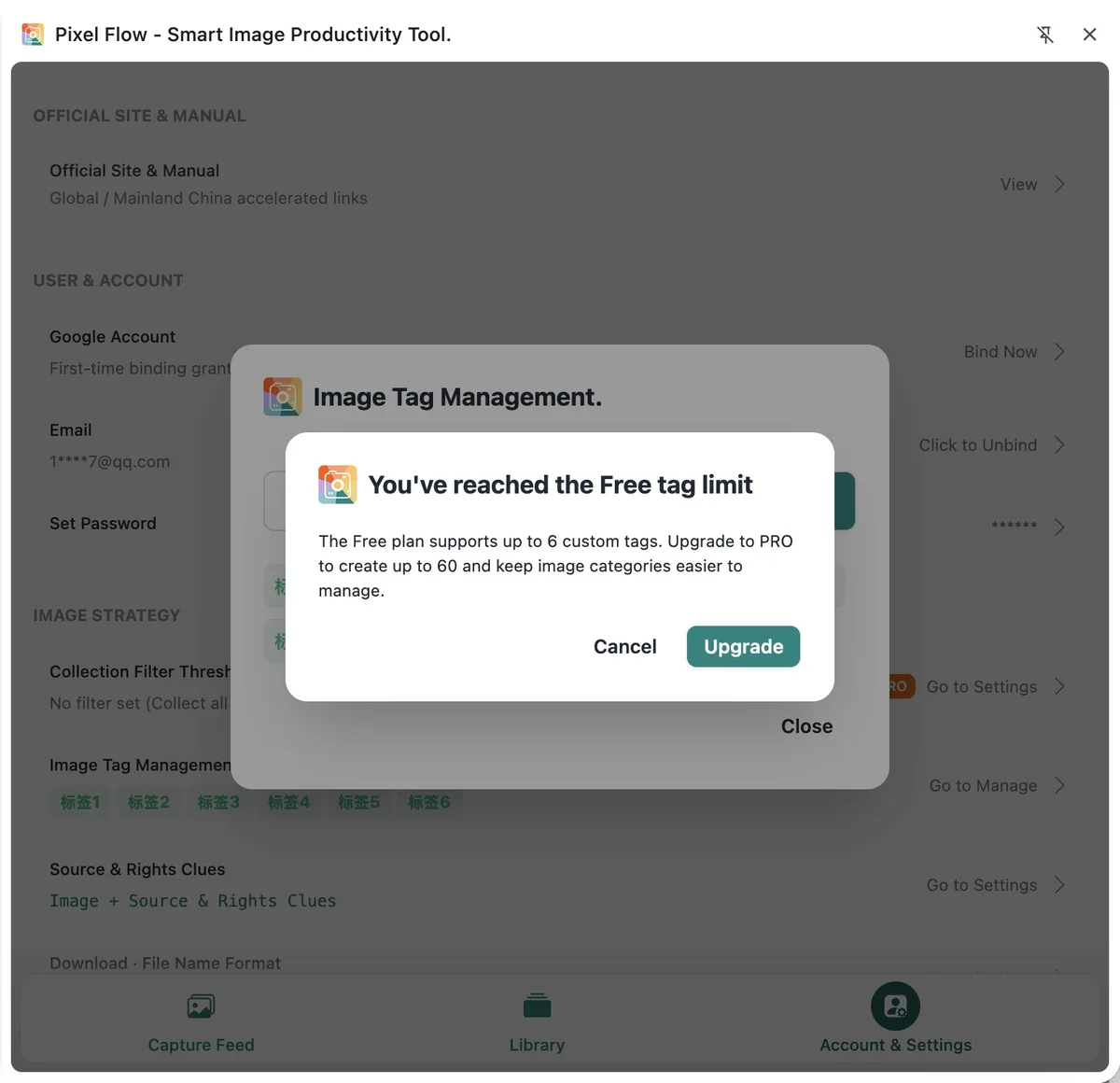
When Pixel Flow shows a quantity message for favorites, tags, or batch downloads, you have usually reached the quota for the current account plan. First identify which limit the message refers to, then decide whether to clean up favorites or tags you no longer need, reduce the current selection, or upgrade to PRO.
Plan limits
| Capability | Free | PRO |
|---|---|---|
| Total favorite images | Up to 60 images | No fixed image count limit |
| Custom tags | Up to 6 tags | Up to 60 tags |
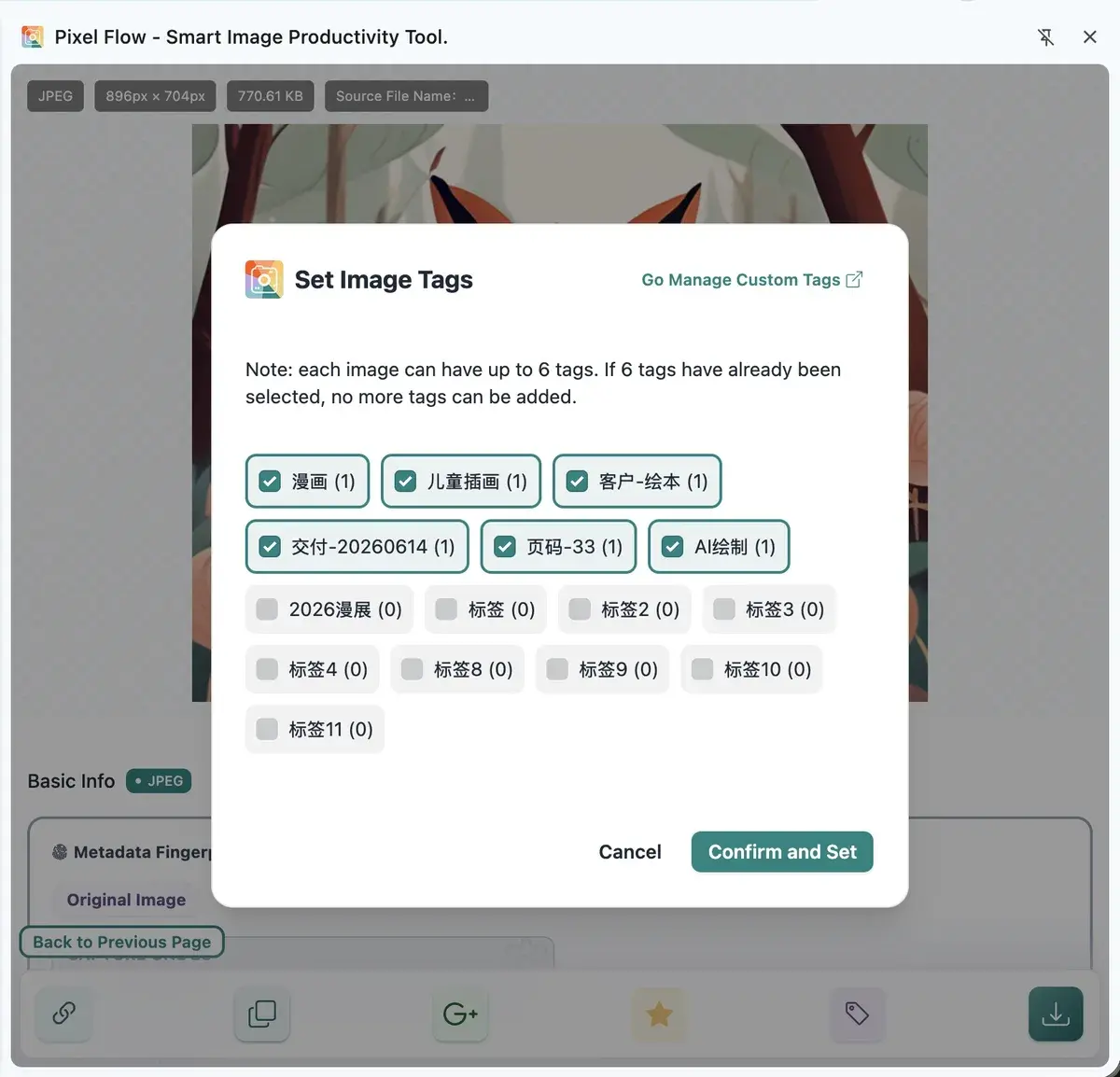
| Tags on one image | Up to 6 tags | Up to 6 tags |
| One batch download | Up to 6 images | Up to 30 images |
These limits follow the current product version. If you are reading old screenshots or old documentation, treat the in-app prompt as the final source of truth.
What these prompts mean
| Prompt you see | Meaning | What you can do |
|---|---|---|
| Favorite failed or quantity limit reached | Free favorite count is close to or over 60 | Clean up favorites you no longer need, or upgrade to PRO |
| Free tag limit reached | You have created 6 custom tags | Merge duplicate tags, delete low-use tags, or upgrade to PRO |
| PRO tag limit reached | You have created 60 custom tags | Delete unused tags and keep a stable classification system |
| Cannot add more tags to one image | This image already has 6 tags | Remove unnecessary tags before adding new ones |
| Too many images selected for batch download | The selection exceeds the current account’s per-task download limit | Select fewer images, download in batches, or upgrade to PRO |
How to organize tags more effectively
If you often hit the tag limit, group tags into more stable categories:
- Use purpose-based tags, such as “product hero,” “campaign poster,” or “avatar.”
- Use project-based tags, such as “spring launch,” “client A,” or “website refresh.”
- Use status-based tags, such as “authorization pending,” “source confirmed,” or “reusable.”
- Avoid turning every detail into a tag. Color, size, and date can often live in download records or filenames instead.
Back up before cleanup
Before cleaning favorites or tags, export a data backup first. This is important: if you accidentally clean the wrong favorites, tags, or local data, a backup package will usually make later recovery possible.