
Docs
Pixel Flow user manual and best practices
Find scanning, filtering, image details, library, export, account, and industry workflow guidance by task.
Use Right Click to Inspect One Image in Detail
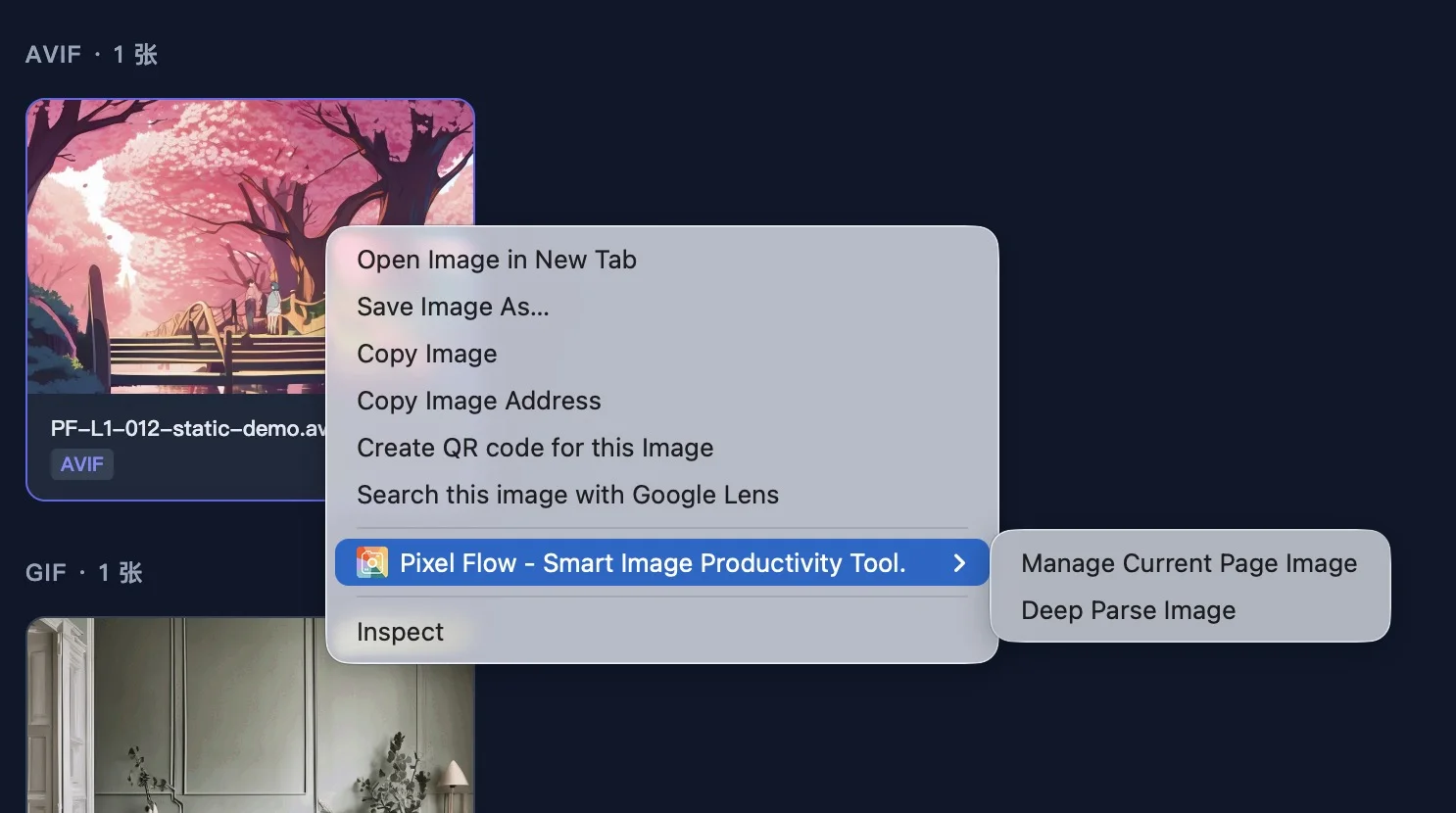
When you see an image on a webpage and want to check its format, dimensions, file size, or source clues without scanning the whole page first, move your mouse over that image, right-click, and choose Pixel Flow’s Deep Parse Image menu item. Pixel Flow opens the detail preview page for that image, where you can review its basic information, source clues, and any metadata that can actually be parsed from the file.
When to Use This
Use this entry when your situation is basically: “I already picked this one image, and I want to confirm some details about it right now.”
You can use it to check:
- The image format, dimensions, and file size.
- Which page the image came from, so you can go back and review the surrounding context.
- Whether the image carries metadata clues such as camera data, editing software, color space, or copyright-related fields.
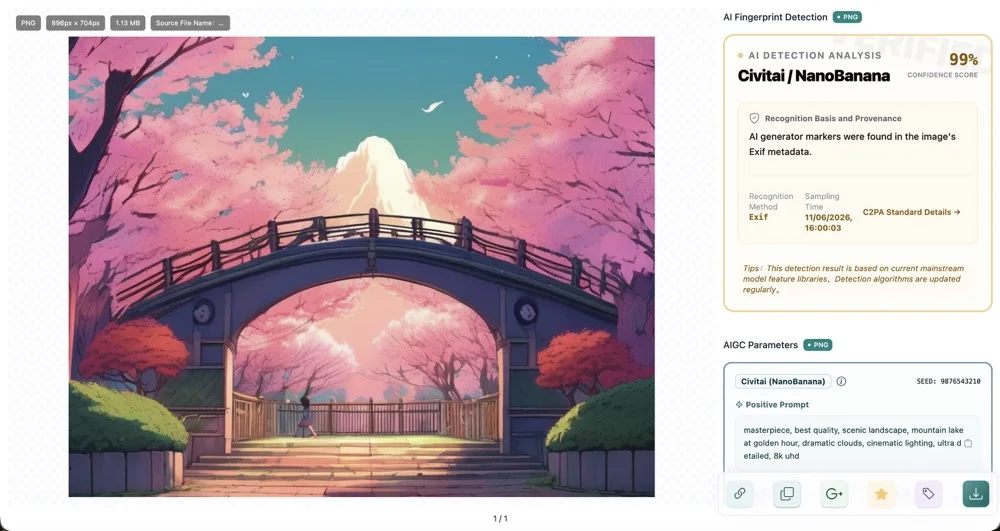
- Whether Pixel Flow can show AI fingerprint results or AIGC parameters.
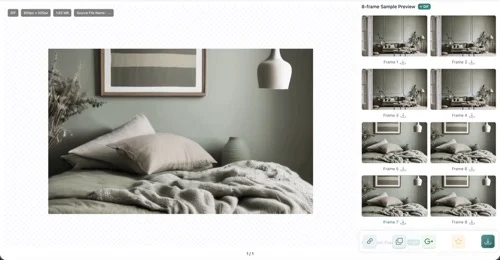
- Whether an animated image has frame information and sampled frame previews.
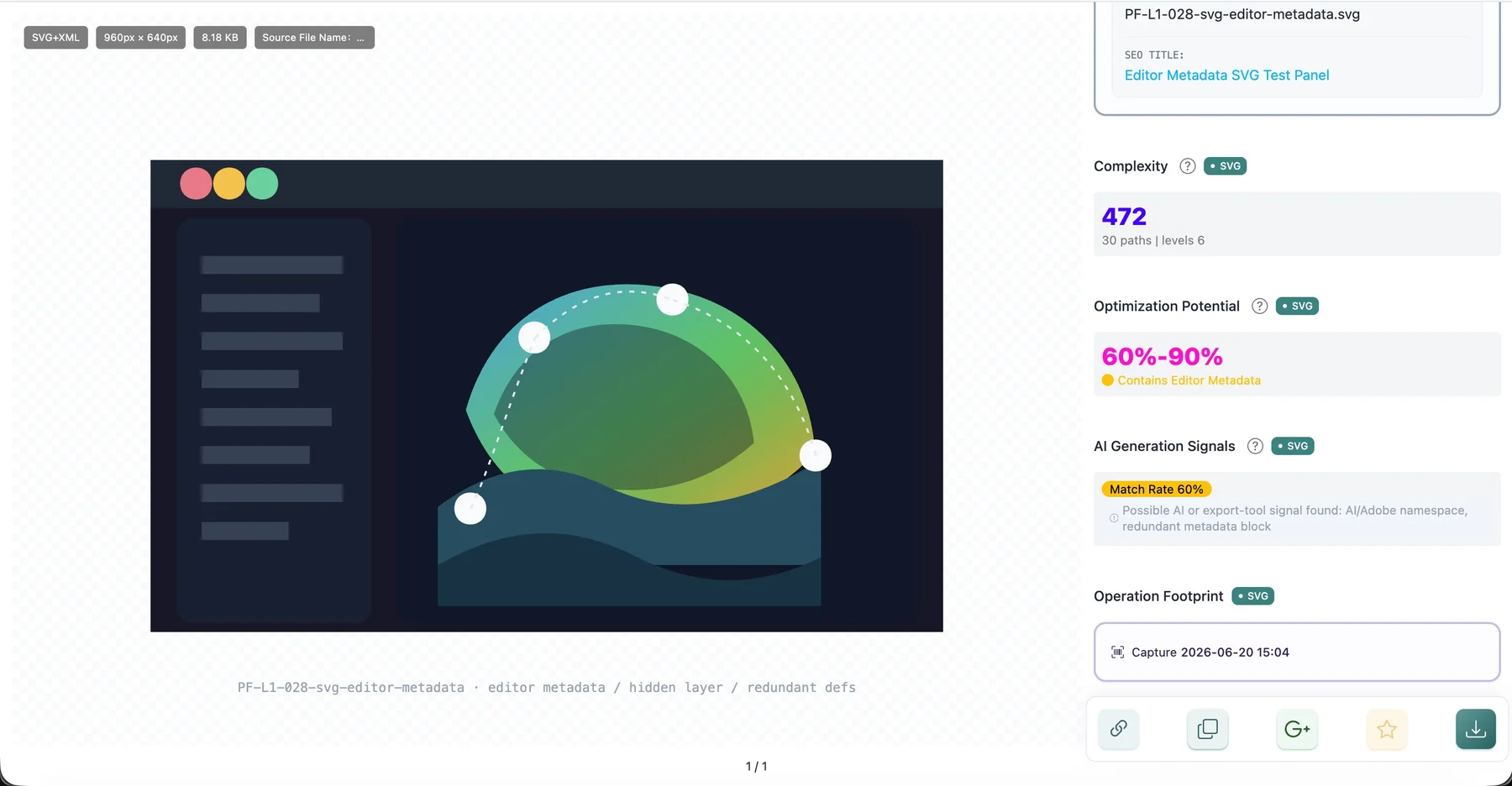
- Whether an SVG contains complexity, optimization, or AI generation signal hints.
If you have not picked a single image yet and want to organize the images across the whole webpage, start with Manage Current Page Images instead.
How to Use It
- Open the webpage that contains the image you want to inspect.
- Move your mouse onto the main body of that image and pause briefly.
- Right-click the image.
- Open the Pixel Flow submenu and choose Deep Parse Image.
- Wait for the preview page to open (if the preview page opens, the image has been parsed successfully).
- Review the image preview, basic information, source clues, and available analysis results.
The left side of the preview page shows the image itself. The right side shows whatever Pixel Flow can read from that image, along with the available action buttons.
What You Can Review
Different images can show different information to you. Pixel Flow first reads the image itself, then shows the modules that match the file format and available metadata.
| What you want to confirm | Where to look in the preview page | What it helps you decide |
|---|---|---|
| Whether the image fits your task | Format, dimensions, file size, source file name | Whether it is suitable for design, publishing, delivery, or download |
| Where the image came from | Image source, page title, site name, image URL | Whether you need to return to the source page and review context |
| How the page describes the image | Contextual description, alt text, page title | Whether the image description is useful for product work, editorial use, or asset records |
| Whether there are shooting or editing clues | Metadata fingerprint, image lifecycle, shutter moment | Whether camera, lens, capture time, or editing software information exists |
| Whether there are AI-related clues | AI fingerprint detection, AIGC parameters | Whether generator, prompt, seed, sampler, or related traces appear |
| Whether an animation can be broken down | Frame information, 8-frame sample preview | Whether it is worth extracting frames, archiving the animation, or downloading the first frame |
| Whether an SVG is complex | Complexity, optimization potential, AI generation signal hints | Whether it includes redundant metadata, dense paths, or export-tool traces |
| Whether you have already handled this image | Operation footprint | Whether the image has already been captured, favorited, or downloaded |
Pixel Flow only shows information it can actually read. If the image does not contain camera metadata, AIGC parameters, or source clues, or if a platform has stripped those fields, the preview page may show an empty state, no result, or only basic information.
Results Vary by Format
Deep parsing is not just a larger image view. Pixel Flow changes the focus based on the image type.
- JPEG / PNG: useful for basic information, camera data, color space, AI fingerprint detection, AIGC parameters, and image lifecycle clues.
- WebP / AVIF: useful for confirming web delivery format, transparency, color space, static or animated status, and available conversion or download options.
- GIF, animated WebP, animated AVIF: useful for total frame count, total duration, average delay, and 8-frame sample previews.
- SVG: useful for vector complexity, optimization potential, editor metadata, and possible AI or export-tool signals.
What You Can Do Next
After reviewing the image, you can continue from the preview page:
- Open the image source page to review the page title, placement, rights notice, product information, or surrounding context.
- Copy the image information or image URL into a ticket, spreadsheet, asset note, or client communication.
- Use Google reverse image search to look for similar images, possible original sources, or public distribution paths.
- Favorite the image so you can organize it later in the Library without returning to the original webpage.
- Add image tags to group it by project, source, use case, or risk category.
- Download the high-resolution image; depending on the format, you may also be able to download multiple sizes, animations, or frame packages for archiving, delivery, or further processing.
Some advanced capabilities show locked or upgrade prompts depending on your account state and PRO access. Deeper metadata analysis, AI-related clues, full animation frame packages, multi-size package downloads, and format conversion may require sign-in or PRO access. See Free vs Pro to understand which parts are available directly and which parts require an upgrade.
If the Preview Page Does Not Open
If you choose Deep Parse Image but the preview page does not open, it usually does not mean you did something wrong. It often means the extension could not reliably read the image under your mouse on the current page.
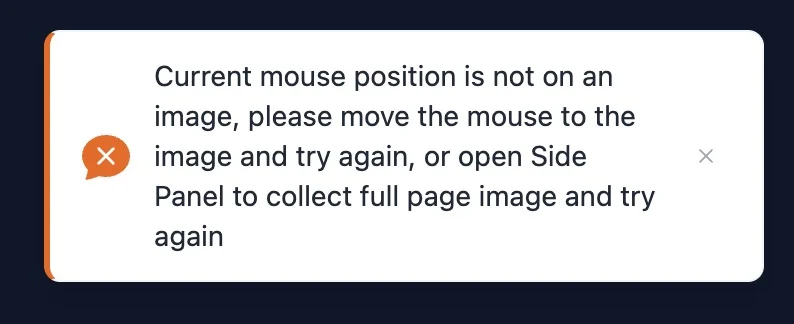
Try these checks in order:
- Make sure the mouse is on the body of the image, not on a button, transparent overlay, link edge, or empty area.
- Let the image fully load before right-clicking. This matters especially for carousels, lazy-loaded images, and images inside popups.
- If the image is on a signed-in page, make sure the current tab still has access.
- If the page structure is complex, use Manage Current Page Images to scan the whole page first, then open details from the capture feed.
- If the same site keeps failing, send the page URL, screenshot, browser version, and Pixel Flow version through Contact Support.
Right-click deep parsing depends on the browser extension being able to read image resources already rendered on the current page. Cross-origin iframes, canvas-rendered content, hotlink-protected resources, temporary signed URLs, and lazy-loaded images that have not rendered yet may not open directly in the preview page.
How to Read Standards and Clues
Technical information in the preview page is useful for review, but it should not be treated as a final rights or licensing decision.
- Exif is commonly used to record digital photo information such as capture device, capture time, lens, and exposure. Exif-related specifications are maintained by CIPA / JEITA; see the CIPA standard list.
- XMP is an extensible metadata model that can be embedded in images, videos, PDFs, and other files. It is often used for editing, rights, and application metadata; see Adobe XMP documentation.
- C2PA / Content Credentials can express provenance and authenticity claims for digital content; see the C2PA specification.
These standards and specifications can help you understand what clues an image may carry. If you need to decide source, copyright, commercial license, likeness rights, trademark concerns, or client-delivery compliance, review the source page, licensing files, and human approval together.
How It Differs from Manage Current Page Images
| Entry | What you want to do | What opens |
|---|---|---|
| Deep Parse Image | You only want to parse or act on the image under your mouse | The preview page for that single image |
| Manage Current Page Images | You want to organize multiple images on the current page, or right-click deep parsing did not work | The side panel capture feed, where you can filter, favorite, batch download, or export images |
In short: use Deep Parse Image when you only need to inspect this one image quickly. Use Manage Current Page Images when you want to work with multiple images on the page, or when a single-image right-click does not open the preview page.