
Docs
Pixel Flow user manual and best practices
Find scanning, filtering, image details, library, export, account, and industry workflow guidance by task.
Context-menu parsing does not open details
The Deep Parse Image item in the context menu is useful when you only want to inspect the image currently under your pointer. It depends on the image clue that your pointer most recently hovered over. If the pointer lands on a button, overlay, outer link container, empty area, or image edge, Pixel Flow may not be able to read the image.
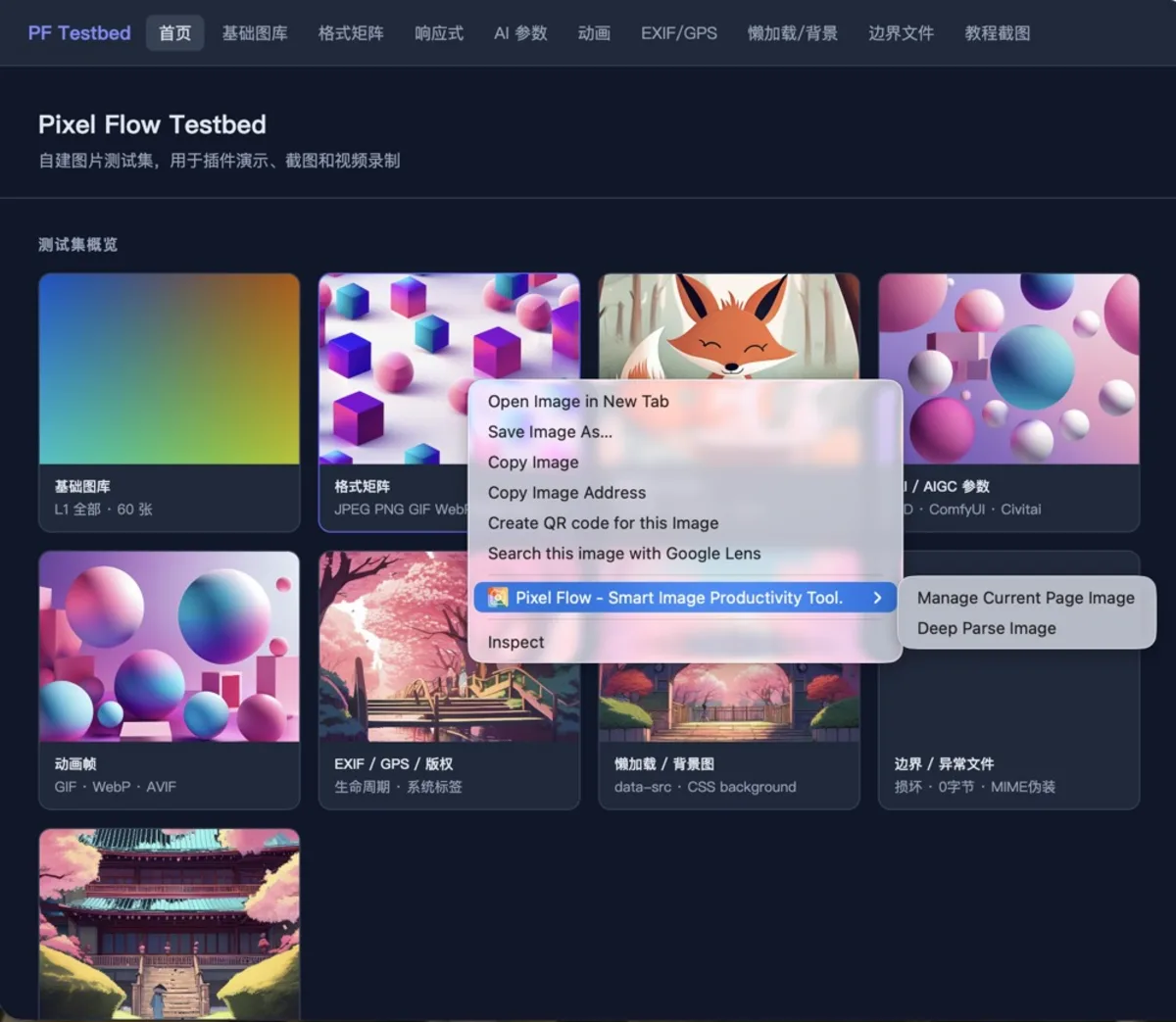
Check the right-click position first
- Move the pointer onto the image itself. Do not stop on buttons, carousel arrows, overlays, text, or the edge around the image.
- If the image just loaded, is switching, or is still a blurred preview, wait until it becomes stable before right-clicking.
- If Pixel Flow says the current pointer position is not on an image, move the pointer slightly on the image and run Right-click > Deep Parse Image again.
- If the same position keeps failing, use Manage Current Page Images to open the capture feed, then open details from the image card. If the image is also missing from the capture feed, please contact support.
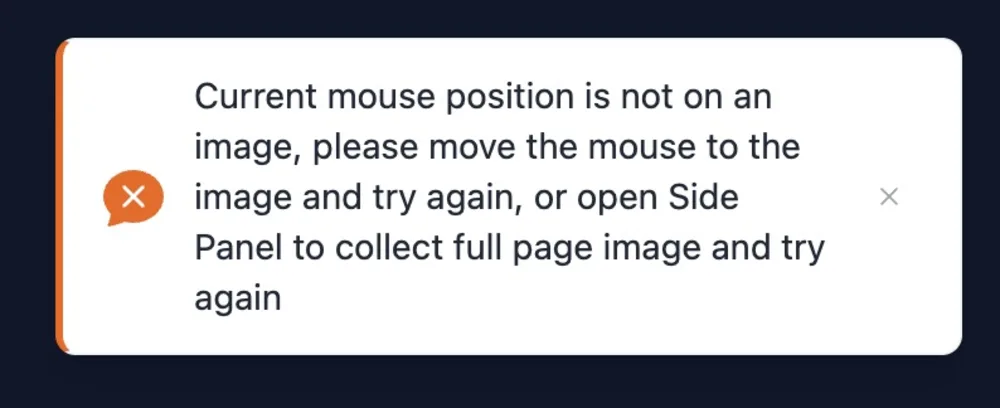
How to handle different cases
| What you see | More likely reason | Suggested action |
|---|---|---|
| Pixel Flow says the pointer is not on an image | The pointer hit an outer element, overlay, or blank area | Move to the image itself, move slightly, and try again |
| Pixel Flow says it is preparing analysis, but no details open | It found an image clue, but later failed to read the image file | Refresh the page, or open details from the capture feed image card |
| The detail page opens, but some fields are empty | The image was read successfully, but the file lacks that metadata or the permission is not unlocked | Check AIGC parameters are empty or the image detail docs |
| Only one website repeatedly fails | Temporary URLs, logged-in resources, anti-hotlinking, or special page structure affects reading | Record the page URL, screenshots, and reproduction steps, then contact support |
Use the capture feed as the fallback after deep parsing fails
If you have tried Deep Parse Image on the same image several times and the detail page still does not open, switch to the capture feed to continue troubleshooting. Open the capture feed with Manage Current Page Images, find the image card for the target image, then open the detail page from that card. This gives you another way to check the image when the context-menu action did not hit the image correctly.
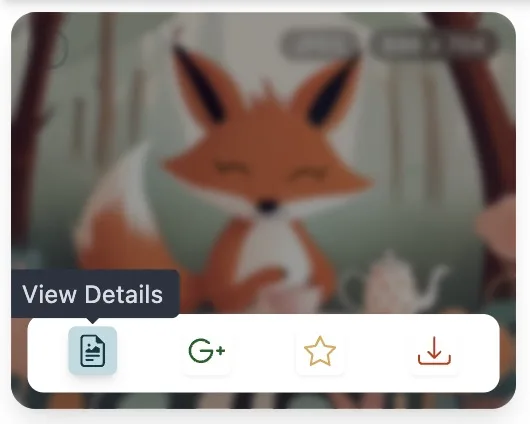
If details open but fields are empty, is that a failure?
No. If the detail page opens and you can see the image preview, format, size, and source page, the image has entered the Pixel Flow detail flow.
Whether later cards contain data depends on the image file, image format, and current account status. For example, camera parameters only appear when the file preserves shooting metadata; AIGC parameters only appear when the file stores recognizable generation parameters; AI fingerprint detection, full frame packages, and multi-size downloads may require sign-in or PRO access.
Technical Notes
If you are not a technical user, you can skip this section. It does not affect normal Pixel Flow usage.
The context menu itself is a Chrome extension capability. Some website images can also be affected by lazy loading, cross-origin reading, temporary URLs, or script-rendered visuals. These are web-page and browser-level constraints, so repeatedly clicking the same action will not always solve them.
Information to include when contacting support
- The page URL, and whether login is required.
- A screenshot of the target image location, preferably marking the exact image you right-clicked.
- A screenshot of the failure message or abnormal detail page state.
- Whether you used context-menu deep parsing or opened details from the capture feed image card.
- Pixel Flow version, Chrome version, and operating system.