
Docs
Pixel Flow user manual and best practices
Find scanning, filtering, image details, library, export, account, and industry workflow guidance by task.
Google reverse image search is unavailable
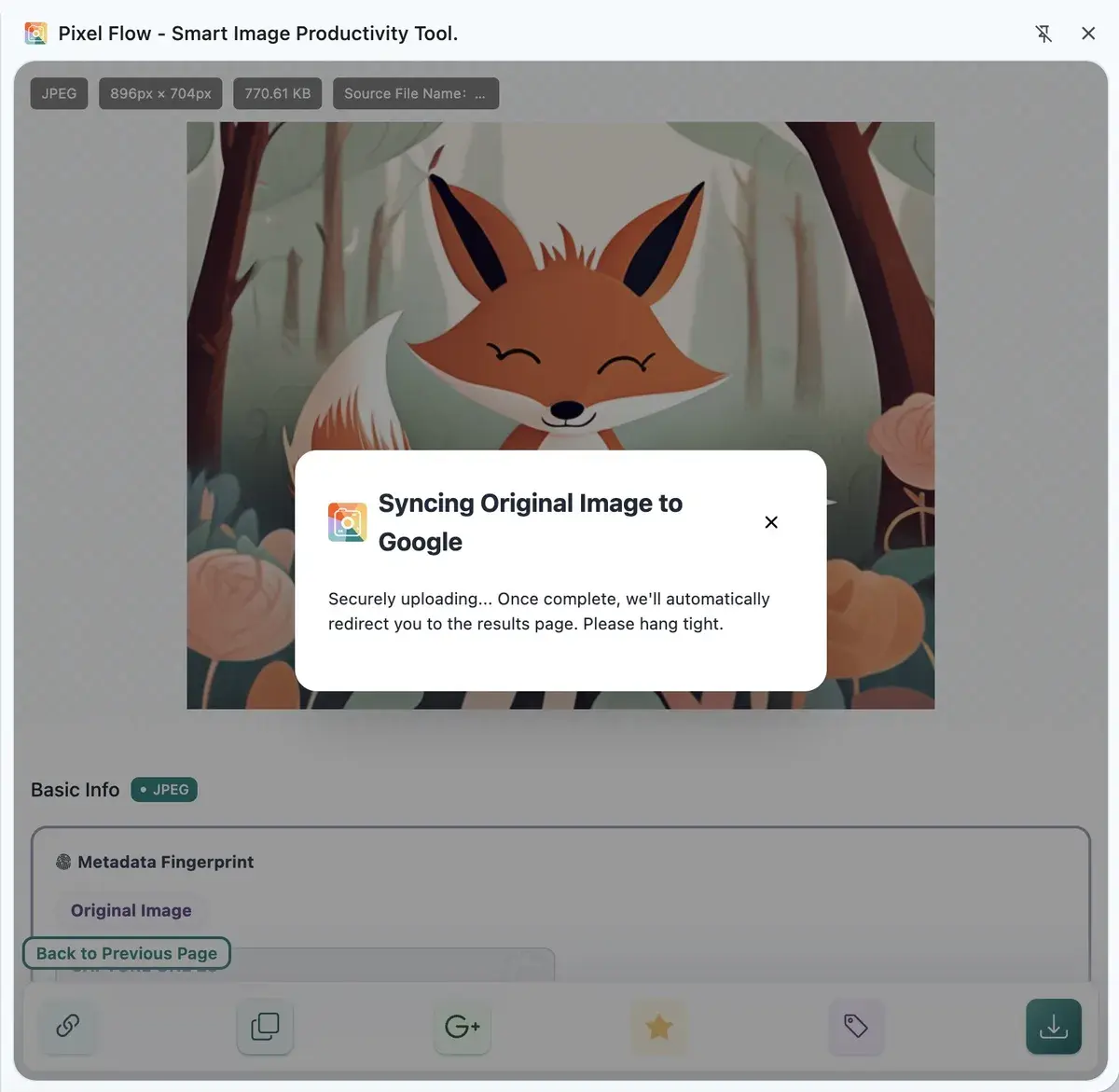
Google reverse image search can help you look for similar images, source pages, and public usage clues, but it depends on an external service, network environment, image size, and whether the image URL is accessible. Pixel Flow can pass the current image clue to the search entry, but it cannot guarantee that Google is reachable, that Google returns results, or that the original source can always be found.
First identify what is unavailable
| What you see | More likely reason | Suggested action |
|---|---|---|
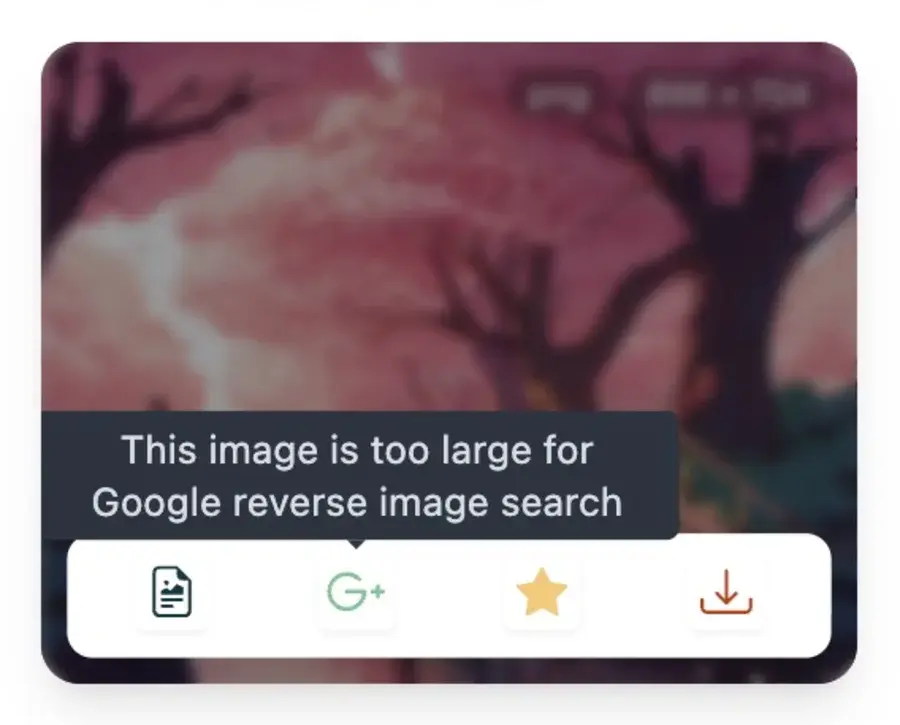
| The button is disabled or says the image is too large | The image file is larger than the suitable search size | Try a smaller image size, or open the image manually in the browser and search from there |
| Pixel Flow says Google service is unavailable | The current network cannot reach Google services | Check the network environment and try again |
| Google opens, but the results are not useful | Google did not find reliable public matches | Try the original image, a clearer version, or the source page |
| Images from certain sites often fail | The image URL is temporary, login-protected, or otherwise protected | Open the original link from details and try the manual fallback check first. If you still cannot determine the cause, record page information and contact support |
Use Google Lens manually as a fallback check
If you are not sure whether Google Lens itself is unavailable or the reverse image search flow inside Pixel Flow did not complete, you can test it manually once:
- Download the image from Pixel Flow and save it locally.
- Open Google Lens. If it does not open, first confirm that your network can access Google services.
- Upload the downloaded image to Google Lens and check whether search works normally.
- If manual upload works, but the same image still cannot be searched from Pixel Flow, contact support with the image sample, source page, Pixel Flow detail page screenshot, and the result of your manual Google Lens test. I will check the cause as soon as possible, give you a conclusion, and reply by email.
Why the same image may work sometimes and fail other times
Google reverse image search works best with publicly accessible, reasonably sized, clear images. When you run into the situations below, use the matching next step:
| Possible situation | Why it affects search | What you can do next |
|---|---|---|
| The image is a local address, internal network address, temporary signed URL, or a URL that requires login | Google may not be able to access the image directly | Download the image locally, then use the manual fallback flow above to upload it to Google Lens |
| The image comes from anti-hotlinking or protected resources | The browser page can display it, but an external search service may not be able to read it | Open the source page from details and keep the page URL and screenshots. If Pixel Flow keeps failing, contact support |
| The image is too large | It may not be suitable for upload or temporary handoff to the search entry | Try a smaller downloaded version, or upload it manually to Google Lens to see whether Google can process it |
| The image has been cropped, compressed, watermarked, or edited | The image may differ too much from public matches for Google to recognize it | Continue checking the source page, download history, and source and rights clue records |
| The current network cannot access Google services | If Google Lens itself cannot open, Pixel Flow cannot complete the search either | Confirm whether your network can access Google. If you are on a company or school network, ask the network administrator to handle the access restriction |
How to continue checking when search finds no useful result
Google reverse image search is not the only way to verify image clues. You can also use the other methods in this section to check image information.
If Google Lens opens, accepts the upload, but does not return useful results, do not keep repeating the same search on the same image. Switch to the checks below, which are more under your control:
- Return to the Pixel Flow detail page and check the source page first. If the source page still opens, record the page URL, page title, and where the image appears.
- Check the source and rights clue records. If the image was downloaded, favorited, or exported before, the record may preserve the download time, site name, source page, and image URL.
- Check the clue spreadsheet inside the download package. If the image came from a batch download or full-frame package,
PixelFlow_Source_Rights_Clues.xlsxcan help match the image back to its source page. - If the source page cannot be opened, or the image is no longer on that page, keep the current image, detail page screenshot, and Google Lens result screenshot, then contact the image source owner or support for further verification.
- If these clues still cannot prove the source or authorization status, do not treat “Google found no result” as permission to use the image.
Technical Notes
If you are not a technical user, you can skip this section. It does not affect normal Pixel Flow usage.
Pixel Flow uses browser capabilities and Google search services. Google returns and ranks the search results; Pixel Flow does not control result order, coverage, or availability. For the search service background, see Google Lens Help. For browser extension permission background, see Chrome’s declare permissions documentation.