
Docs
Pixel Flow user manual and best practices
Find scanning, filtering, image details, library, export, account, and industry workflow guidance by task.
Restore backup data
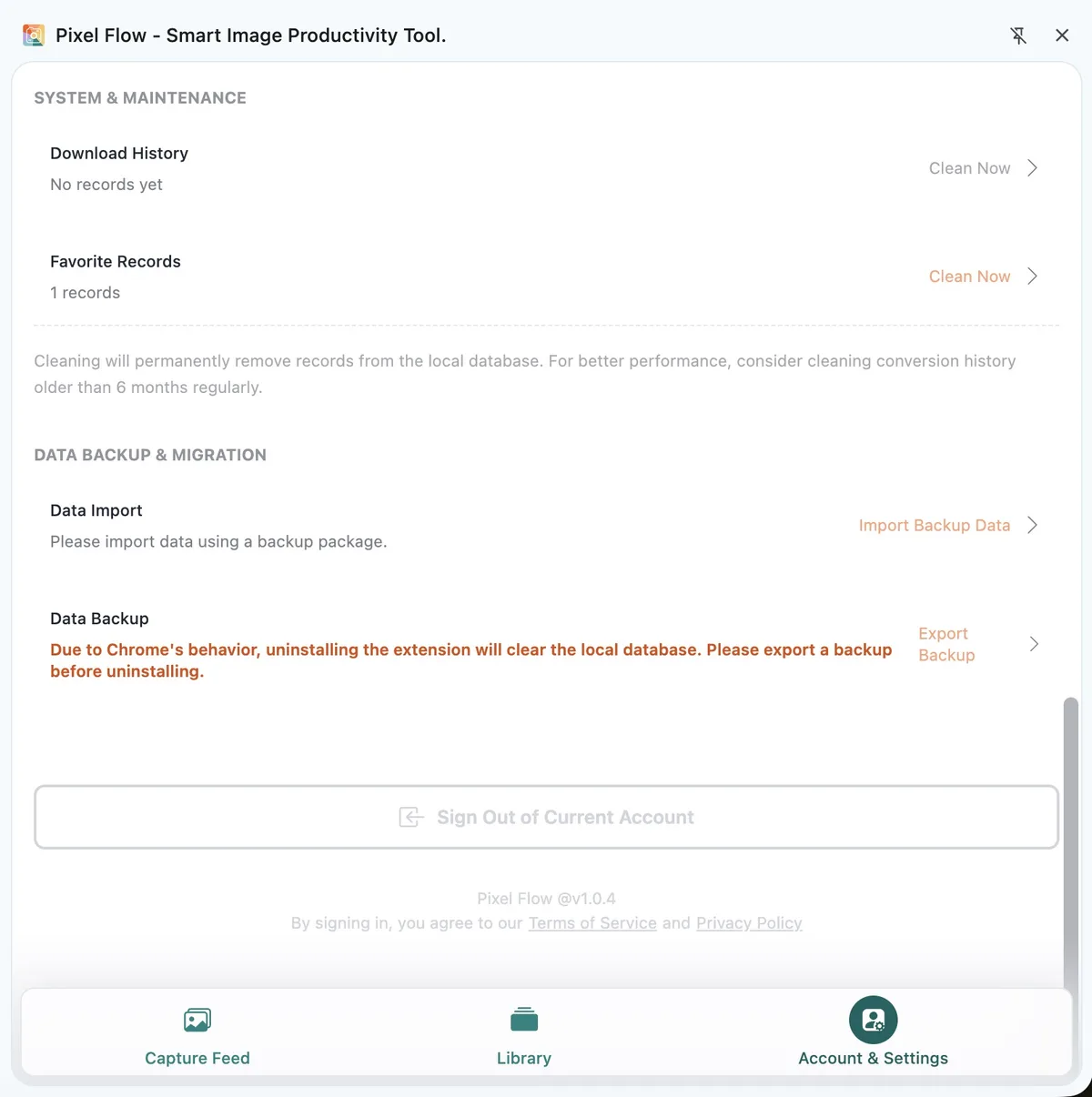
If you plan to switch devices, reinstall the extension, uninstall Pixel Flow, or clear browser data, export a backup first. Chrome extension data is usually stored in the local browser environment, and uninstalling the extension may remove that data. With a backup package, you have a way to restore favorites, tags, download history, and settings data later. For details, see Account and Settings - Data Backup and Import.
What data is backed up
The current backup package saves:
- Favorite image records, plus image data and standard-size data related to favorites.
- Download history records.
- Custom tags.
- User preferences, such as language, filter threshold, download filename format, and source and rights clue record settings.
The backup package does not decide image authorization for you, and it is not cloud sync. It is a locally exported ZIP data package, so you need to keep it somewhere safe.
If import fails, check these first
| What you see | More likely reason | Suggested action |
|---|---|---|
| The backup belongs to another account | The current signed-in account does not match the backup owner | Switch to the account used when the backup was exported |
| The backup package is missing files | The ZIP was modified, damaged, or is not a Pixel Flow backup | Select the correct backup package, or export again if needed |
| Some favorites are missing after import | Duplicate favorites already existed, or the current quota is full | Check library count and account plan |
| Import takes a long time | The backup contains many images and records | Keep the side panel open and wait for import to finish |
| The file is too large to import | The backup package exceeds the current import limit | Clean old data and export a smaller backup package |
Important reminders
- Only import trusted backup packages that you exported yourself.
- Import tries to merge with current data. Do not treat it as a full overwrite restore tool.
- If you plan to clean favorites or download history, export a current backup first.
- If you plan to uninstall the extension, make sure the backup package has downloaded successfully first.
Technical Notes
If you are not a technical user, you can skip this section. It does not affect normal Pixel Flow usage.
Chrome extension local data is tied to the extension installation state and browser profile. Uninstalling the extension, clearing site data, or changing browser profiles can affect locally stored data. For background, see Chrome extension documentation for the Storage API.