
Docs
Pixel Flow user manual and best practices
Find scanning, filtering, image details, library, export, account, and industry workflow guidance by task.
Image Details
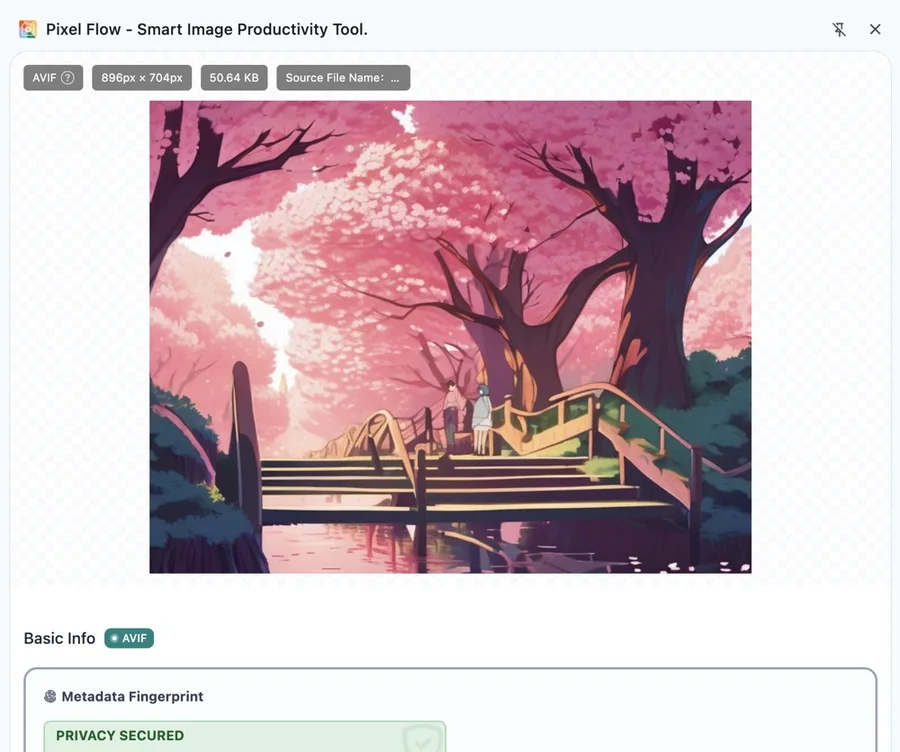
Image Details is the Pixel Flow workspace for reviewing one image. You can inspect dimensions, format, source URL, page context, EXIF, AI fingerprint, AIGC parameters, animation frames, SVG structure, download actions, and conversion options. It gives you reviewable clues, not proof of image rights.
When To Use It
| Task | Check first | Next action |
|---|---|---|
| Confirm an image before download | Dimensions, format, file size, available variants | Download the original or available variants |
| Review the image source | Source URL, page title, site name, alt text | Open the source page and keep review notes |
| Inspect technical metadata | EXIF, camera parameters, color space, software | Copy image info or add project notes |
| Review AI / AIGC clues | AI fingerprint, AIGC parameters, prompt, seed, workflow | Treat as supporting clues and review manually |
| Keep team or client records | Key fields, source links, download history, tags | Export records or organize them with the project |
Where To Open Image Details
You can open single-image analysis from several places:
- Hover an image card in the capture feed or library, then click View Details.
- Select images in the capture feed or library, then click Quick Preview to review them one by one in Preview.
- Right-click an image on the web page and choose Deep Parse Image.
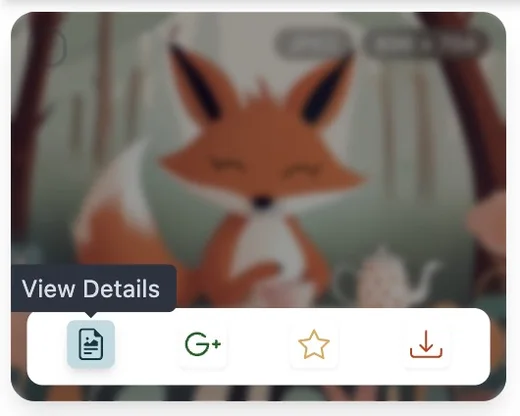
When the Side Panel is already open, Image Details usually appears there. Batch preview or deep parsing from the context menu may open the Preview page. Both places use the same analysis logic; the main difference is layout and browsing mode.
Start With Basic Info And Source
After opening Image Details, confirm the basic fields first:
- Image URL: the direct address Pixel Flow used to read the image.
- Source page URL: the page where the image was first detected.
- Page title and site name: context for understanding how the image was used.
- Dimensions, format, and file size: useful for download, design, publishing, or delivery decisions.
- Alt text: if the source page provided alt text, it can be a context clue.
- Action timeline: see whether the image was favorited, downloaded, or processed again.
Source URLs, page titles, alt text, and download records only help you review context. Before publishing, client delivery, commercial use, or dataset preparation, separately confirm image rights, site terms, likeness rights, and trademark limits.
Then Review Metadata And Technical Clues
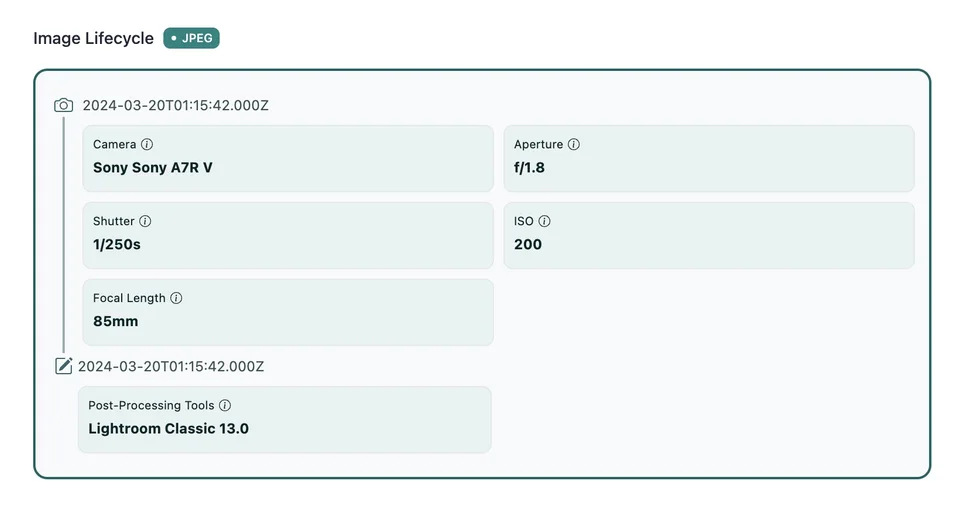
After the basic fields, review available technical clues by image format. Different formats preserve different data, and Pixel Flow does not invent fields that are not present in the source file.
| Type | What you may see | What to remember |
|---|---|---|
| EXIF / camera parameters | Camera, lens, exposure, focal length, GPS, software | Many platforms strip EXIF; empty fields are not unusual |
| Color and format data | Color space, bit depth, ICC, format traits | Useful for display, print, or delivery risk checks |
| GIF / WebP / AVIF animation | Frames, animation info, frame download actions | Some actions may depend on format, quota, or account access |
| SVG | Vector structure, path complexity, redundancy, accessibility clues | SVG behaves more like code than a photo |
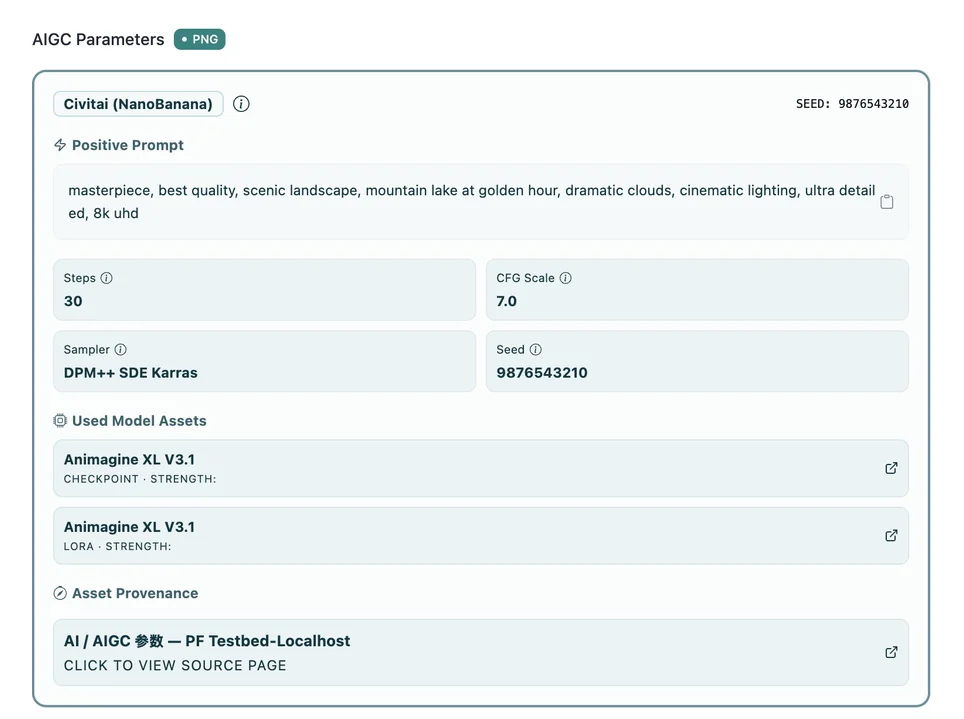
How To Read AI Fingerprint And AIGC Parameters
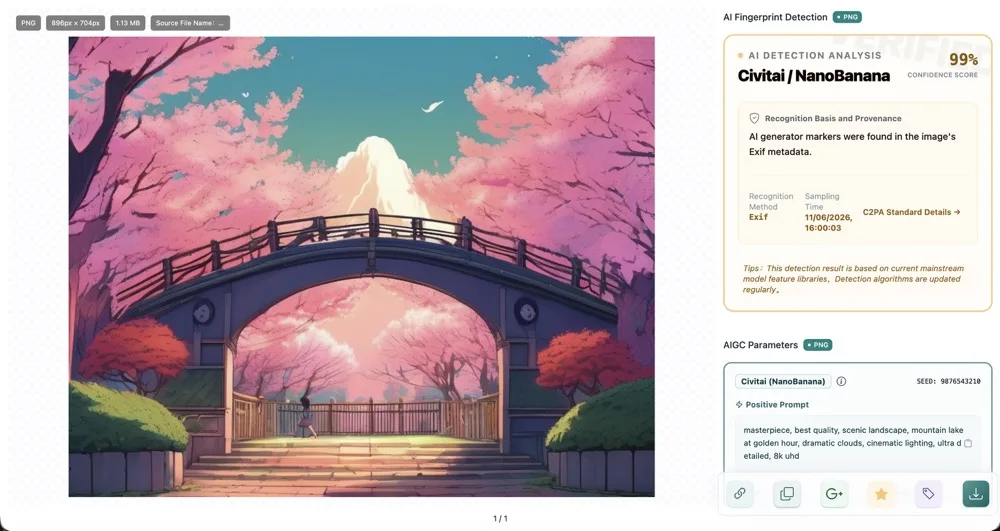
AI fingerprint detection and AIGC parameter parsing are supporting signals, not final evidence.
- AI fingerprint detection: highlights possible generation, editing, or compression clues. It is a prompt for review, not a verdict.
- AIGC parameters: appear only when the image file or source preserved generation metadata.
- Possible fields: Prompt, Negative Prompt, Seed, Sampler, Steps, CFG, model, LoRA, Workflow JSON, and related fields.
- Empty results have causes: platform stripping, recompression, screenshots, re-exporting, or format conversion can remove parameters.
“No AI features detected” does not prove an image was made by a human. Detected AI or AIGC clues also do not automatically determine rights status.
What You Can Do Next
When you need to keep working with the image, use these actions from Image Details.
Free And Pro Notes
| Capability | Free | Pro |
|---|---|---|
| View basic information and source clues | Available | Available |
| View some format details | Available | Available |
| AI fingerprint detection | May be limited or unavailable | Broader availability |
| AIGC parameter parsing | May be limited or unavailable | Broader availability |
| Animation frame packages, variant downloads, format conversion | May depend on format, quota, or access | Broader availability |
Available buttons depend on image format, account state, quota, and browser limitations. For the full access comparison, see Free vs Pro.
Learn More
If you want to understand a specific information area first, open the related page:
- View Basic Information
- View camera parameters and lifecycle
- AI fingerprint detection
- AIGC parameter parsing
- Google Reverse Image Search
- Analyze One Image and Its Source