
Docs
Pixel Flow user manual and best practices
Find scanning, filtering, image details, library, export, account, and industry workflow guidance by task.
Online Photography Archive and Version Review Workflow
Once your photography has been published on an official website, client page, gallery page, event page, or media article, the hard part of archiving is no longer downloading the image again. The hard part is making the published display version explainable again: where this work appears, which size and format the page uses, which original shoot archive, retouched delivery version, or client-approved version it corresponds to, whether it still keeps camera data, GPS, color-space, or rights clues, and whether you can find and review it later.
In the overall archive workflow, Pixel Flow belongs in the organization stage. Start from the image version that is actually visible on the webpage, favorite and organize your published works, then add source pages, specs, camera clues, color clues, tags, download records, and source or rights clue records so you are ready for future portfolio presentation, project archiving, and version review. This Pixel Flow step does not replace original RAW files, retouching project files, stock-library systems, contracts, or license files. Instead, it helps you connect online display versions with project archive materials in a reviewable workflow. Image tags are especially useful for recording version status, review progress, and follow-up actions.
Pixel Flow shows clues that can be read from the current webpage image file and page context. Missing camera data does not mean an image is untrustworthy. A copyright field does not mean you have permission. A source record does not make an image automatically usable for commercial work. Before official publication, client delivery, redistribution, or gallery ingestion, still check the original files, license files, model releases, location privacy, and client usage scope through your own workflow.
When Pixel Flow Fits Best
The best time to use Pixel Flow is soon after your work has been published on a media site, client website, event page, gallery page, or portfolio page. As the image author, photographer, or delivery owner, you can use Pixel Flow to archive the online version while the page is still fresh. This does not mean you must download the image immediately. It is better to first create a favorite-based record: where the work appeared, which image file the page actually used, and which camera or source clues were still present. Later, when you need to show the work to a client, partner, editor, or teammate, you can export an inventory or download a package from the favorited images.
Do not wait until a client asks, a media article is republished, the website is redesigned, or a rights review starts. By then, the page may have replaced the image, the media article may have changed its title or file name, and the original clues may be harder to match.
If you are the image author, I strongly recommend using Pixel Flow at these points:
- After your work is published in a media article, client page, or gallery page, scan the page, favorite the online works that need archiving, and keep the source record.
- After the client confirms the page is live, place the online display images that carry source and rights clue records in the same project archive folder as the original delivery files.
- After a website redesign, event closeout, gallery update, or media republication, favorite again and add tags again so the new page and new version are recorded.
- When you need to show published works to a client, editor, partner, or teammate, export an Excel inventory or download a package with source clues from the favorited images so others can see where each work appeared and which online version it corresponds to.
These moments map to common archive tasks:
Check whether images on an official site, portfolio, or case page still keep suitable dimensions, format, source context, and basic description.
Review images currently used on a client website or event page, and determine whether they look like original captures, retouched exports, or platform-transcoded versions.
Check whether gallery pages, press articles, or brand-material pages contain sensitive location data, unusual color-space clues, or missing source context.
Favorite published works and source pages first. When a client, editor, partner, or teammate needs to review them, export an inventory or image package.
Workflow Pain Points and Pixel Flow Fixes
| Where the workflow gets stuck | How to use Pixel Flow | What you get |
|---|---|---|
| A work has just appeared on a client site, media article, or event page, and you want a record of “where my work is being shown.” Saving pages manually is easy to miss. | Scan the current page in the capture feed and favorite the works that should enter your archive. | A favorite record for the published works on that page. |
| When updating your own portfolio or showing cases to a new client, you remember the project name but not which client page or media article each work appeared on. | Export with source clues, because the “source clues” Excel file keeps archive fields such as source page, site name, page title, image URL, and Alt text. | A source inventory you can use for portfolio organization and case presentation. |
| A client uploaded your retouched delivery image, but the site compressed it, cropped it, or generated several sizes. You are not sure whether the online version still meets delivery expectations. | Open image details and review dimensions, format, file size, camera parameters, image lifecycle, and similar data. | Review clues for the current webpage display version. |
| Event, wedding, interior, or commercial-location work goes live, and you worry the image still carries GPS, shooting time, client location, or undisclosed venue information. | In image details, check whether the file contains location information, GPS coordinates, shooting time, and other photographic data, then use tags to record whether it needs action. | A privacy-risk list and follow-up tags. |
| Your work is republished by media, posted again by a brand, or re-ingested into a gallery. File names and page descriptions change, making it hard to explain which shoot and delivery version this online image came from. | Favorite the work when it goes live, and use tags to record project, client, page, version status, and review progress. Export an inventory or download a package only when you need to share it. | A reviewable online-version record. |
| The retouched delivery, webpage display image, and print-source image show different colors, and the issue is discovered only after client feedback. | When the work first goes live, open image details to check color space, ICC profile, standard web gamut, wide gamut, subtractive print model, and HDR clues, then use image tags to mark issues and feedback. | Color-review reminders and target-environment checks. |
| During yearly portfolio organization, project review, or team handoff, you cannot tell which online images were only viewed, which were favorited, and which were packaged for someone else. | Tag favorited works, and review favorite or download records in image details or exported information. | A project image log that can be handed off. |
Recommended Operating Workflow
This workflow guides you through discovery, noise reduction, version confirmation, favorite-based record keeping, and delivery only when needed, so you end up with your own online archive portfolio.
- After an image is published on a media site, client page, gallery page, portfolio, or event page, the image author or delivery owner opens that online page and confirms it is the display version to archive.
- Open the capture feed from the side panel and rescan the current page to solve the problem of scattered page images and missed manual saves.
- Use format, ratio, source, and resolution filters to remove icons, avatars, button backgrounds, decorative images, placeholders, and low-value thumbnails, so the candidate list is not too noisy and your own work is easier to find.
- After finding your own work, you can take the “favorite and archive” route first: favorite the online works that should enter the project archive, and use image tags to record the project, client, published page, version status, and follow-up actions.
- You can also take the “preview/detail review” route: use quick preview to browse the works quickly, or open image details to check dimensions, format, file size, source page, camera parameters, image lifecycle, color space, GPS, and metadata-sanitization clues.
- If preview or details reveal an issue, such as compression, cropping, color mismatch, unhandled location data, or a version that does not match the delivery file, mark the issue with tags first, then discuss it with the client, editor, website owner, or teammate.
- Works with no issues can stay in the library as your own online archive. Works that need more review can be tagged as original-file check, location-privacy review, color review, or source/license review.
- Only when you need to send the published works to a client, editor, partner, teammate, or another third party, use batch download with source records or export image inventory so you do not send only image files without source context.
- Put the exported image package, source and rights clue records, Excel inventory, original files, and license materials in the same project archive folder so the online-version review remains traceable.
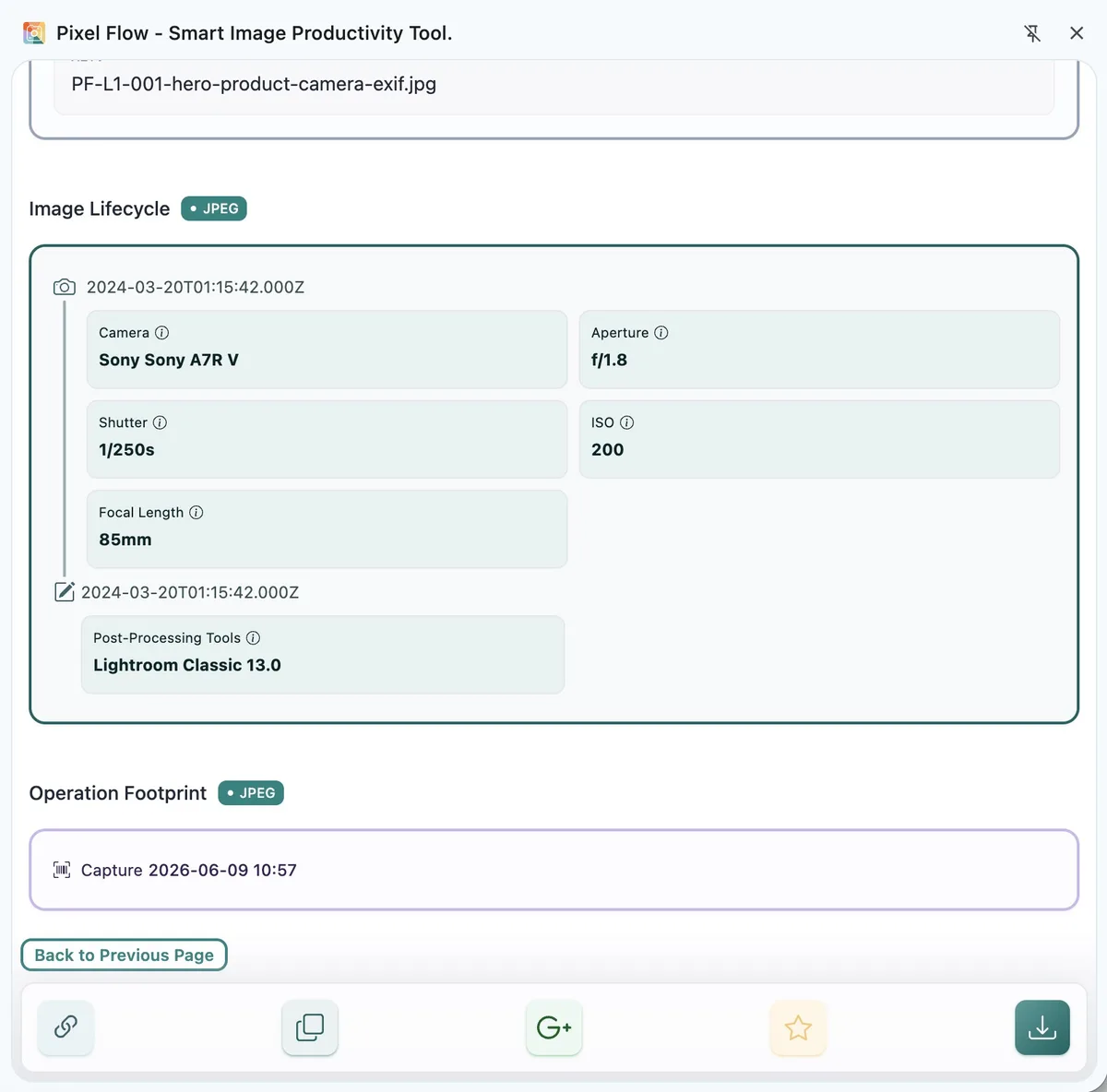
Photography Image Review Checklist
| What you want to confirm | Where to look in Pixel Flow | How the author can review it | Do not conclude directly |
|---|---|---|---|
| Whether the current webpage image is a high-quality display version | Dimensions, format, file size, high-resolution label, source URL | Compare with client delivery specs, site image guidelines, or gallery ingestion requirements | Do not assume a large width means it is the original master |
| Whether camera clues remain | Camera body, lens, aperture, shutter speed, ISO, focal length, capture time | If visible, record them in the review notes; if missing, mark “current file does not provide camera clues” | Missing EXIF does not mean theft or that it is not a photographic work |
| Whether location privacy is involved | Location information, GPS coordinates | Review extra carefully for people, homes, weddings, commercial shoots, and undisclosed locations | Do not treat GPS as public by default |
| Whether the image went through editing or platform export | Image lifecycle, editing tool, last modified time, metadata-sanitization clues | Distinguish original capture, retouched version, web-compressed version, and re-exported version | An editing tool does not mean the image is problematic |
| Whether color is suitable for webpage display | Standard web gamut, wide gamut, professional photography/print gamut, subtractive print model, HDR clues | Recheck on target devices, target browsers, and the client review environment | Do not judge final color only by one screen |
| Whether source is traceable | Asset provenance, source page, site name, page title, image URL, Alt text | Export the inventory and keep it with project records, license files, and client confirmation | Source clues are not proof of permission |
| Whether your operation can be reviewed | Operation footprint, favorite time, download time, download history | Use it to explain when the image was captured, favorited, downloaded, or packaged | Operation footprint does not prove the external authorization chain |
Review GPS and Location Privacy Separately
Photography can easily carry location clues. Weddings, children, homes, commercial interiors, private exhibitions, warehouses, factories, labs, medical scenes, and client internal events should not expose precise locations by default.
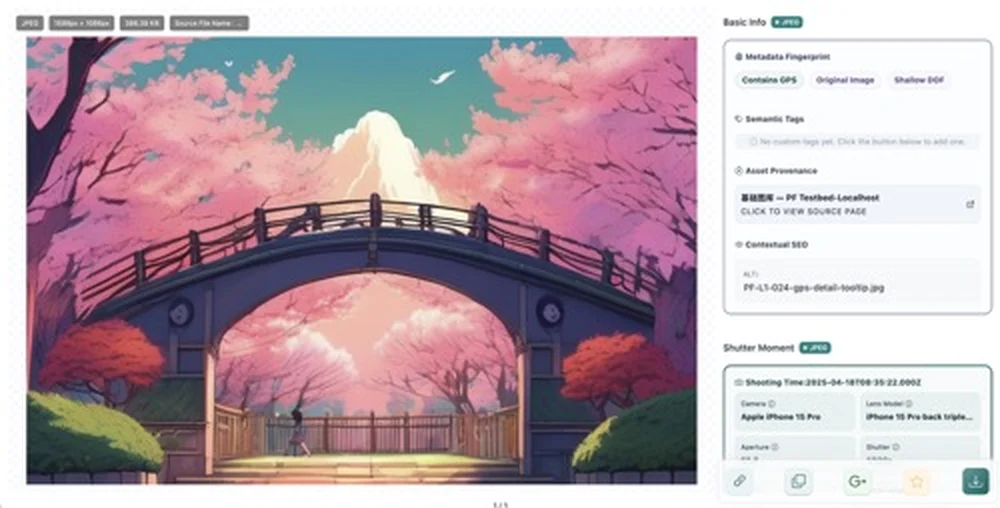
Suggested handling:
- If the page is public-facing, client-facing, or media-facing, confirm whether the location may be public. If not, ask the media outlet or page owner to remove the related data before displaying it.
- If the image came from a photographer delivery package, go back to the original export settings and confirm whether GPS should be removed.
- If the image is already live, ask the website administrator to replace it with a published version that removes location metadata when necessary.
GPS is part of photo metadata. It can help archives trace a shooting location, but it can also expose privacy. For more field explanations, see Camera EXIF and Photo Metadata and Metadata Reliability and Boundaries.
Color Space Affects Delivery Quality
After retouching, exporting, uploading, and platform transcoding, a photo’s color space may change. In Pixel Flow, sRGB, Display P3, Adobe RGB, CMYK, HDR, or missing profile signals should be read as “color-management clues for the current file.”
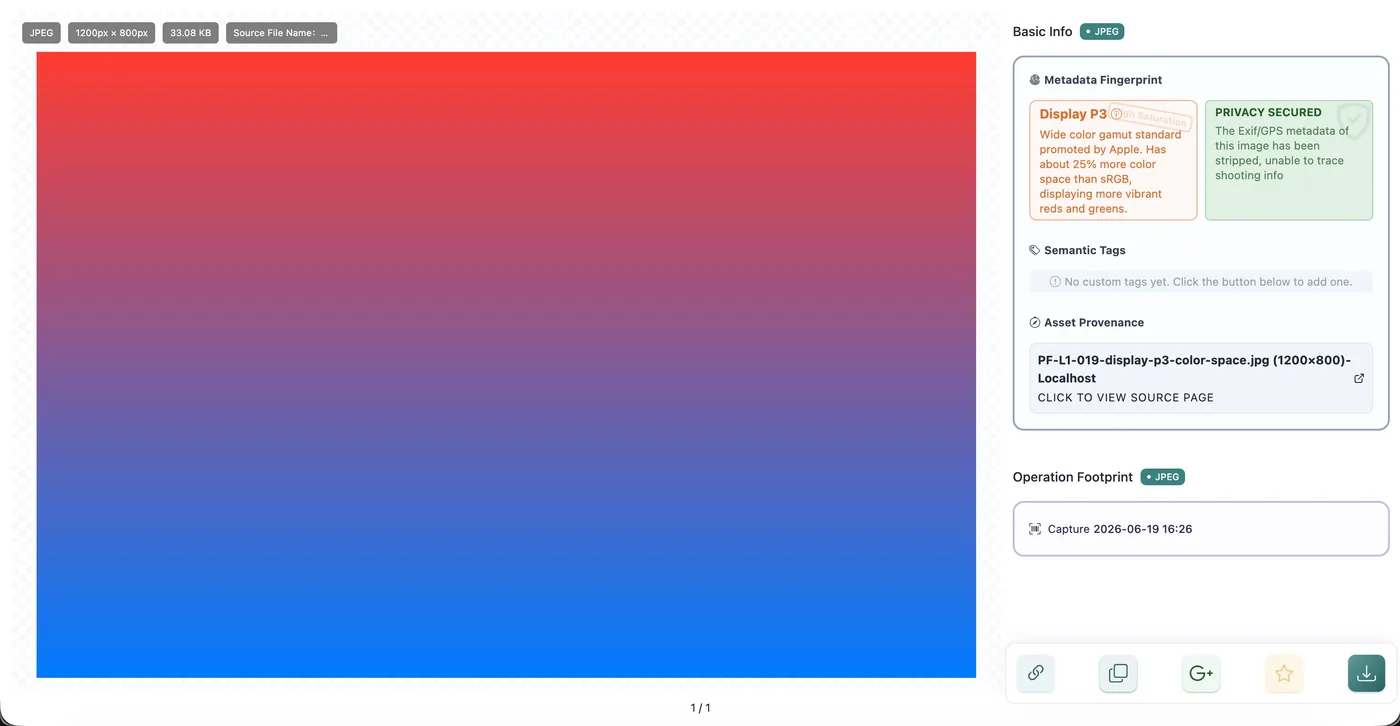
Photography authors can read color-shift risks like this:
| Clue shown | Possible webpage effect | Whether to discuss with the site |
|---|---|---|
| Standard web color space | Usually closer to expectations for most webpages, social media, and ordinary screens. | For important works, still recheck the target page after publication. If color looks right, record it as a reviewed clue. |
| Wide gamut or professional photography gamut | May look more vivid on wide-gamut devices. On ordinary screens, some browsers, or after platform transcoding, saturation and tonal layers may shift. | If the website expects stable web display, confirm with the client or page owner whether a web export should replace it. |
| Subtractive print model | More suitable for print workflows. If used directly on a webpage or ecommerce page, colors may look gray, dark, or different from the original. | Mark the issue and ask the designer, print owner, or page owner whether it should be replaced with a web export. |
| HDR or high bit depth | May display inconsistently on ordinary screens; highlights, shadows, or contrast may differ from the author’s intent. | Use it as a target-device review reminder. If it affects presentation, discuss with the site owner. |
| Missing profile | Different software, browsers, and devices may interpret colors differently, making the same image unstable across environments. | For important works, go back to the original or retouching export settings, then decide whether the site should replace the image. |
sRGB, ICC profiles, wide gamut, and print color models are color-management standards or industry-specification topics. Pixel Flow can remind you that a webpage image may need review, but it cannot replace professional color correction, print proofing, or client acceptance. For more, see Color Space and Color-Shift Risk.
Use Operation Footprint to Record Your Process
Photography archiving is not only about saving image files. You also need to review when the image was found, whether it was favorited, whether it was downloaded, and whether it entered a delivery package. The operation footprint in image details is useful for recording the capture, favorite, and download timeline inside Pixel Flow.
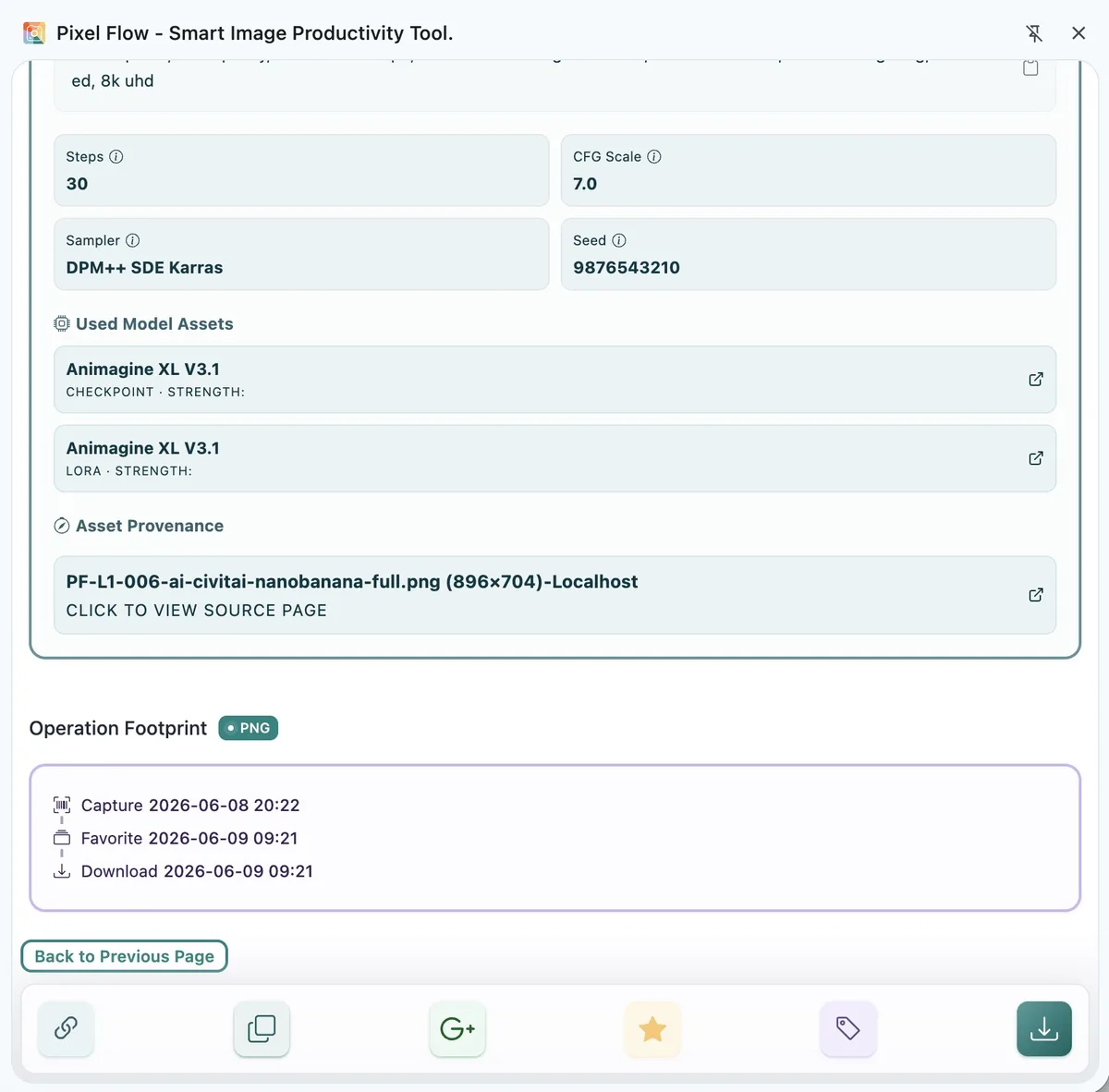
Use operation footprint for these cases:
- Review the day this published work was captured into Pixel Flow.
- Confirm whether the work has been favorited and whether it has entered your archive portfolio.
- Check whether the work has been downloaded, and whether it may have been packaged for a client, editor, or partner.
Operation footprint records your process in Pixel Flow, not the external authorization chain. Authorization still depends on contracts, platform terms, client confirmation, gallery licenses, or photographer delivery notes.
Recommended Tag Scheme
Tags should serve the workflow, not decoration. A useful scheme records project, page type, version status, and review risk.
portfolio-live: already live in a portfolioclient-site: currently used on a client websitegallery-audit: gallery spot-check candidatepress-page: media article or press-page imageweb-version: web display version, not the original masterretouched-version: likely retouched or exported versionneeds-exif-check: needs camera-parameter reviewgps-review: needs location-privacy reviewcolor-space-review: needs color-space or target-device reviewsource-check: needs source or license material reviewarchive-approved: confirmed archive-ready under your own workflow
Keep only 3 to 5 high-value tags per image. For example, client-site, web-version, and gps-review are more useful than a long list of generic adjectives.
Download or Export Only When Sharing With Others
For your daily organization, start with favorites, tags, and source records. You do not need to download a package every time a work goes live. When you need to send published works to a client, editor, partner, teammate, or another third party, download a package with source clues from favorited images, or export an Excel image inventory.
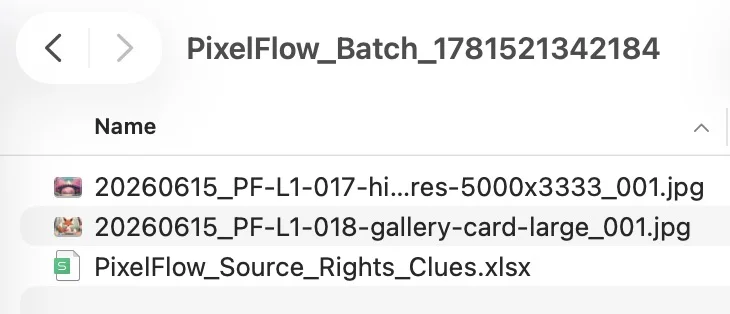

A useful photography archive package usually includes:
- Image files or a download package.
- Source pages and image URLs.
- Page titles, site names, and Alt text.
- Current webpage-image dimensions, format, and file name.
- Capture, favorite, and download time.
- Tags and review status.
- Original-file location, license-file location, or client confirmation record.
If the project needs to survive device changes, browser changes, or long-term storage, continue with Data Safety, Backup, and Cleanup and Backup and Migration.
Build Your Own Online Archive Portfolio
After completing an online photography archive pass, the result should not be “a folder full of random downloads.” It should be a traceable review package:
- Which images came from which pages.
- The dimensions, format, and source URL of each current webpage image.
- Which images retain camera parameters, GPS, post-processing tools, or color-space clues.
- Which images are only web display versions and need original-master review.
- Which images have been favorited and entered the project archive.
- Which images still need license, location privacy, color, or client usage-scope review.
The value is practical: when you organize your personal portfolio, show a case to a new client, confirm the live version with a client, or review a shoot project, you can quickly explain which page the work appeared on, which online version it corresponds to, and whether it was already favorited, downloaded, or marked for follow-up.
FAQ
Do I need to download the image immediately after it goes live?
Not necessarily. It is better to favorite the published work first and tag the project, client, page, and version status. When you need to show it to a client, editor, partner, or teammate, export an inventory or download a package with source clues.
A client website compressed or cropped my work. What can Pixel Flow help me do?
Open image details to review the online version’s dimensions, format, file size, source URL, camera clues, and image lifecycle. Then tag it as web-version, needs-original-check, or needs-client-confirmation. Pixel Flow cannot change the client website for you, but it can organize the version clues you need for the conversation.
A media site republished my work. How should I keep a record?
Open the media page, rescan it, favorite the corresponding work, and tag the media name, page type, republished version, or review status. Later, if you need to show the record to a client or partner, export an Excel inventory so they can see the page, page title, image URL, and Alt text.
What should I do if a live image contains GPS or location information?
First confirm whether that location can be public. Homes, weddings, children, commercial spaces, private events, and client internal scenes require more caution. If it should not be public, tag the issue and ask the client, media outlet, or page owner to remove the related data before displaying it.
The live image color does not match my retouched delivery. What should I do?
In image details, check color space, ICC profile, wide gamut, subtractive print model, missing profile, or similar clues, then revisit the target page to review the actual effect. If the color shift affects presentation, tag the issue and discuss with the client, designer, or site owner whether a web-optimized export should replace it.
When should I export an inventory while organizing my portfolio?
Export when you need to show cases to a new client, explain where a work is live, hand off archive materials, or review the online display versions for a project. For daily organization, favorite and tag first; export only when the records need to be shared.
Related Docs
- Open the Side Panel and Auto-Capture: discover work images from the current webpage.
- Quick Preview: quickly review published works before opening details.
- Image Details: inspect dimensions, format, source page, camera data, GPS, color space, and operation footprint.
- Favorite Images and Organize with Tags: place published works in the library and tag project, version, and review status.
- Source and Rights Clue Records: understand which source fields are kept in packages or inventories.
- Batch Download with Source Records: download image packages with source clues when sharing with clients, editors, or partners.
- Export Image Inventory: organize work pages, image URLs, tags, and download records in an Excel inventory.
- Camera EXIF and Photo Metadata: understand camera parameters, GPS, and photo metadata.
- Color Space and Color-Shift Risk: learn more about sRGB, Display P3, Adobe RGB, CMYK, ICC, and HDR clues.
- Data Safety, Backup, and Cleanup: understand backup boundaries before keeping long-term library, tag, and download records.