
Docs
Pixel Flow user manual and best practices
Find scanning, filtering, image details, library, export, account, and industry workflow guidance by task.
How Marketing and Brand Teams Organize Competitor Visuals, Campaign Assets, and Source Records
When marketing and brand teams use Pixel Flow, the real goal is not to “download competitor image assets.” The goal is to turn visual clues from competitor pages, campaign landing pages, brand asset pages, official site sections, and ad reference pages into a working file that can be reviewed, handed off, and traced back to the original source page. In meetings, the team should be discussing the same images, the same sources, and the same status labels, not scattered screenshots, chat attachments, and temporary downloads.
At the same time, the real problem is usually not “whether there are images.” It is that there are too many images, unclear sources, messy review states, and handoffs that cannot explain where each image came from or why it was saved. Pixel Flow fits this workflow by helping you collect candidate images from the current page, filter out low-value page elements, favorite the images that truly need review, label their purpose and review status, and export an inventory with source clues for the team to keep evaluating.
Pixel Flow can help you collect images that are accessible on the page, keep source-page and image clues, organize tags, and export inventories. It does not grant image usage rights. Competitor images, ad creatives, portrait images, brand marks, and third-party assets often have stricter rights boundaries. Before external publishing, ad placement, client delivery, or derivative editing, confirm the relevant permissions separately.
The Real Bottlenecks and Solutions for Marketing Teams
The painful part of this work is rarely “no images.” It is “we saw it but cannot find it again,” “we saved it but cannot explain it,” and “we handed it off but nobody knows whether it can be used.” A screenshot only shows what the image looked like. It does not reliably explain which page it came from, when it was seen, which campaign it belonged to, whether it has been reviewed, or whether it is only for internal reference. This is exactly where Pixel Flow is useful: it keeps the image together with the clues needed to judge it later.
| Pain point in the user workflow | Common result without Pixel Flow | Pixel Flow capability | Better work output |
|---|---|---|---|
| Page images are scattered | Screenshots, saved files, chat messages, and downloads get mixed together | The capture feed turns current-page images into a candidate list, and rescan can add newly loaded content | A reviewable candidate list for the page’s visual material |
| Candidate images are noisy | Icons, avatars, button backgrounds, thumbnails, and hero images are mixed together | Filter by format, ratio, source, and size, then use quick preview before selecting | Low-value page elements are removed before the team reviews the real candidates |
| Judgement lacks context | After a meeting, only image files remain and nobody remembers the page | Keep source page, page title, site name, image URL, image Alt text, and scan time | Each image can be checked against the original page instead of explained from memory |
| Status gets confused | Competitor references, internal assets, and third-party material end up in one folder | Favorite to the library and use tags for brand, campaign, channel, purpose, and review status | The team sees both the image and what should happen next |
| Handoff lacks evidence | Design, media, client, or legal teams receive only a batch of files | Export an Excel inventory with source, specs, format, tags, usage reminders, and timeline fields | Meetings, briefs, and rights reviews can work from the same review file |
The Role Pixel Flow Plays in the Workflow
In most marketing and brand workflows, the work is closer to competitor visual review, campaign asset observation, brand consistency checks, landing page image audits, pre-meeting reference preparation, and source review for your own pages. In that workflow, whenever more than one person is involved, the best practice is to keep clues for “why this was saved, where it came from, how it may be used next, and who needs to confirm it” so later discussions and handoffs stay aligned.
In this workflow, Pixel Flow works best between “discover assets” and “team review.” It first gathers the page’s visual clues into one place, then uses filtering, preview, favorites, tags, and export to turn scattered images into a working file that can keep supporting discussion, handoff, and rights confirmation.
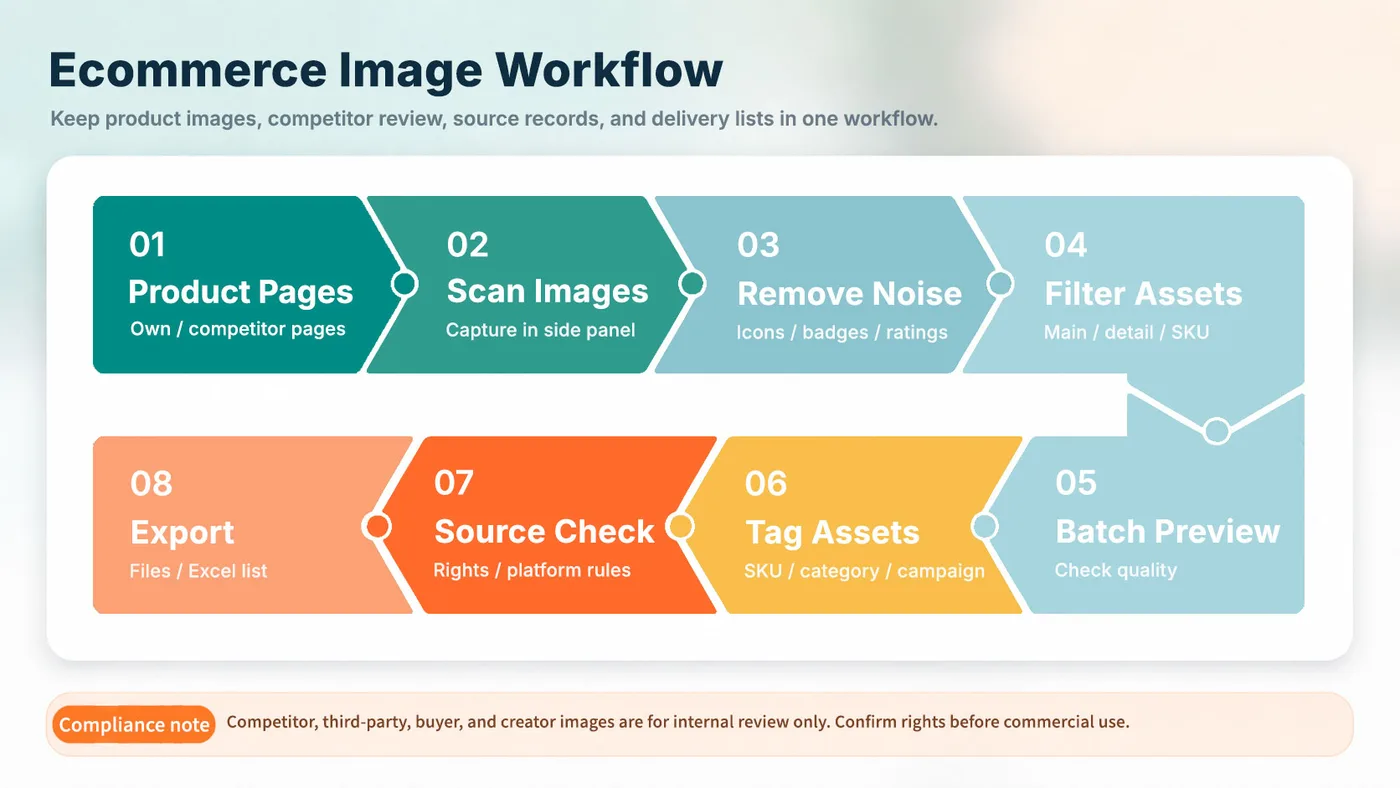
The flow below follows the common bottlenecks of marketing and brand teams and uses Pixel Flow to organize the work: use the capture feed to solve “page images are scattered,” filtering and quick preview to solve “candidate images are too noisy,” the library and tags to solve “status is messy,” and exported inventories to solve “handoffs lack source and evidence.”
- Open a competitor official site, campaign landing page, brand asset page, ad reference page, or your own page.
- Scroll until the images you need are visible on the page.
- Open the Pixel Flow side panel, enter the capture feed, and wait for the current page images to be collected.
- Filter by format, ratio, source, and size to remove icons, avatars, button backgrounds, decorative lines, low-resolution thumbnails, and irrelevant placeholders.
- Select hero images, banners, campaign images, content images, product images, or scene images as candidates.
- Use quick preview to check image content, dimensions, source page, image Alt text, and whether the image is worth adding to the discussion list.
- Batch favorite only the images that need review, handoff, or rights confirmation.
- Use tags to record brand, campaign, channel, purpose, and review status.
- Export an Excel image inventory, and batch download image files when needed for meetings, design briefs, or rights review.
- After the project ends, remove temporary favorites that no longer matter and keep records that have confirmed review value.
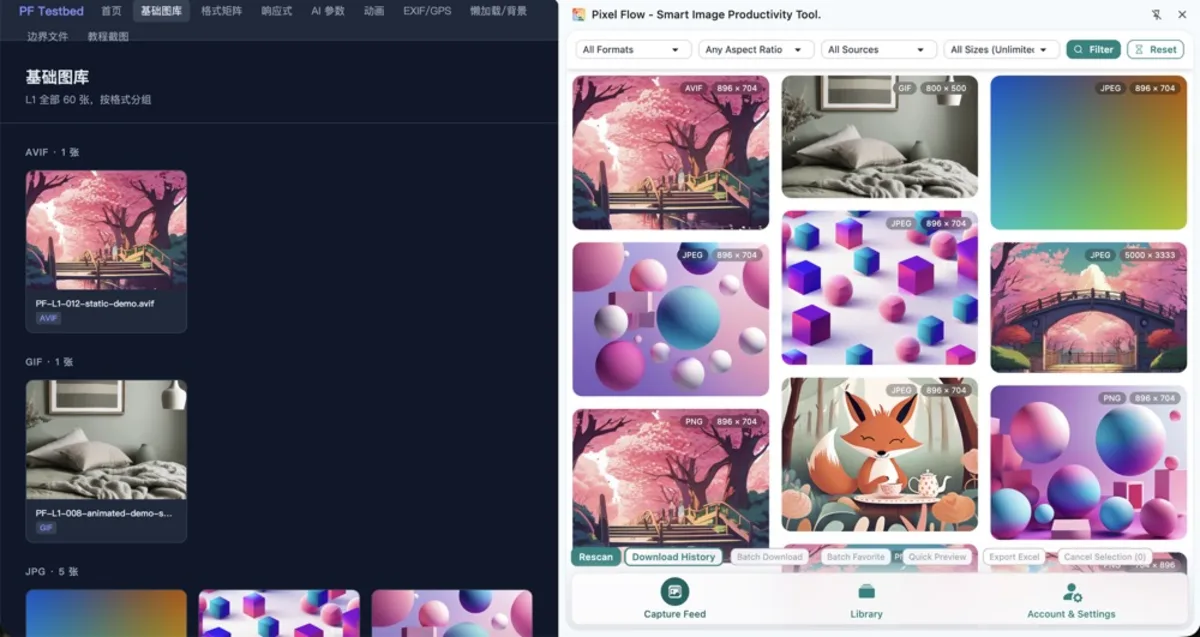
If you are not familiar with the entry point yet, start with Open the Side Panel and Scan Automatically. If the page has many images, continue with Filter by Format, Ratio, Source, and Resolution.
Step 1: Solve the Problem of Scattered Page Images
Marketing and brand teams often review visual assets from official sites, competitor pages, campaign landing pages, and ad reference pages at the same time. In this workflow, screenshots or “save image as” quickly create duplicate files, unclear filenames, and source pages that cannot be found again. Pixel Flow’s capture feed can first show the images already loaded on the current page, giving you a “page visual candidate list” before you decide what is worth saving.
At this step, Pixel Flow solves the “see everything first, then choose” problem: you do not need to browse while taking screenshots manually, and you do not need to guess sources from local folders. The capture feed puts current-page images in one view so you can decide what deserves the next step.
Marketing and brand pages also contain many low-value images: site logos, payment badges, avatars, rating stars, button backgrounds, social icons, transparent decoration images, and loading placeholders. They interfere with review and make exported inventories harder to read. Pixel Flow’s capture feed and filters are designed to help remove this painful layer of noise.
Depending on your goal, the author recommends filtering this way:
| Visual clue you want | Recommended filtering | Usually remove first |
|---|---|---|
| Campaign hero visual | Landscape images, large size, remote source, JPEG or WebP | Logos, icons, button backgrounds |
| Brand banner | Landscape images, large size, page-body images | Transparent decoration, navigation thumbnails |
| Social or content image | Square or landscape images, content-area source, clear images | Avatars, emoji images, low-resolution thumbnails |
| Product or scene image | Large size, clear source, image Alt text related to page topic | Rating stars, payment badges, UI fragments |
| Competitor observation image | Keep source page, campaign name, and review-status tags | Unclear sources or images likely to be mistaken for owned assets |
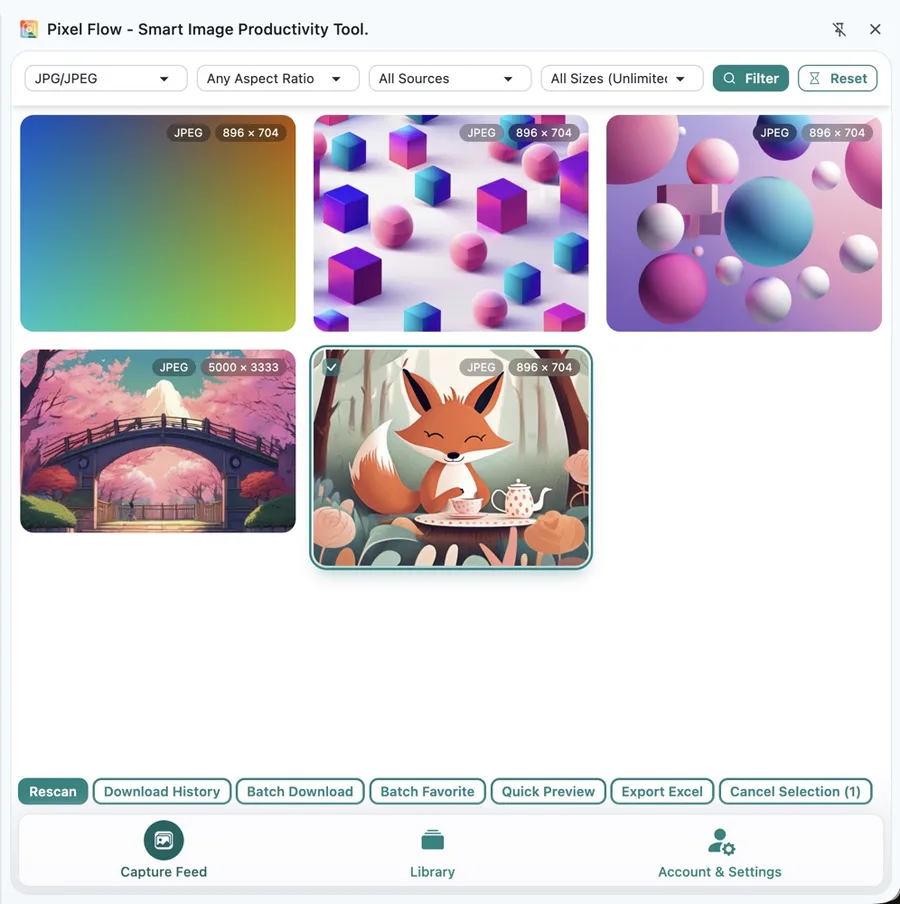
Technical note: “Source” and “specs” here are browser-page technical clues. The capture feed reads image elements that are already loaded on the current page or near the viewport, such as ordinary images, responsive images, vector images, and some background images. When the workflow involves webpage image structure, responsive image candidate URLs, media types, and similar details, treat them as browser and web-standard information. Pixel Flow organizes that information into a readable list; it does not bypass page access permissions to crawl a whole site.
Step 2: Solve the Problem of Noisy Candidates and High Review Cost
After filtering, do not jump straight to downloading. What marketing and brand teams really need is “which images are worth entering the discussion stage,” not turning every page image into a local download file. At this moment, Pixel Flow’s quick preview is useful for one round of human judgement before favoriting or downloading.
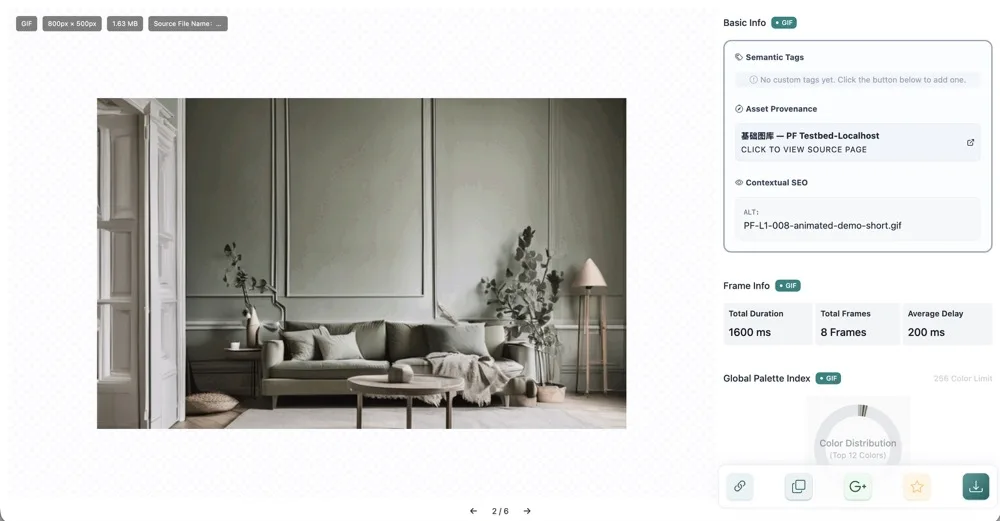
At this step, Pixel Flow solves the “review cost is too high” problem. Images do not need to be downloaded locally and opened one by one. You can preview, compare, and shortlist inside the capture feed, spending human attention on whether an image should enter the review list.
- Is this image a page hero, campaign visual, content image, or just decoration?
- Is the subject complete, clear enough, and suitable in ratio for a meeting or brief?
- Does the image Alt text explain the image, and does it match the page title or campaign topic?
- Is the source page official, competitor-owned, third-party media, or unclear temporary material?
- Should this image be “internal observation only,” or should it enter a “rights confirmation needed” list?
If you only need to understand one image’s basic information, continue with View Basic Information. If you need to check the original page context, use Open Source Link.
Step 3: Solve the Problem of Messy Status and Accidental Misuse
After images enter the library, the real pain shifts from “finding images” to “knowing what state this image is in.” If a competitor image is saved only as an image file, it can easily be mistaken later for publishable material. At this step, Pixel Flow’s image tags solve the “we have the image, but lost the status” problem: the library keeps the record, and tags express team consensus. For marketing and brand teams, Pixel Flow image tags are not only a classification tool; they are also a working agreement that reduces misuse risk.
Based on later review, handoff, and rights-confirmation needs, the author recommends five tag groups:
| Tag type | Examples | Purpose |
|---|---|---|
| Brand object | Brand - Competitor A, Brand - Own Site | Separate observation targets from owned pages |
| Campaign or project | Campaign - Black Friday, Campaign - Product Launch | Review visual clues from the same campaign together |
| Channel or page | Homepage, Landing Page, Social Ad, Content Page | Understand the communication context of each image |
| Visual role | Hero Visual, Banner, Content Image, Product Scene | Help design or brand owners locate the image’s role quickly |
| Review status | Observation Only, Source Needed, Rights Needed, Owned Asset, Do Not Publish | Prevent competitor or third-party images from being mistaken for publishable assets |
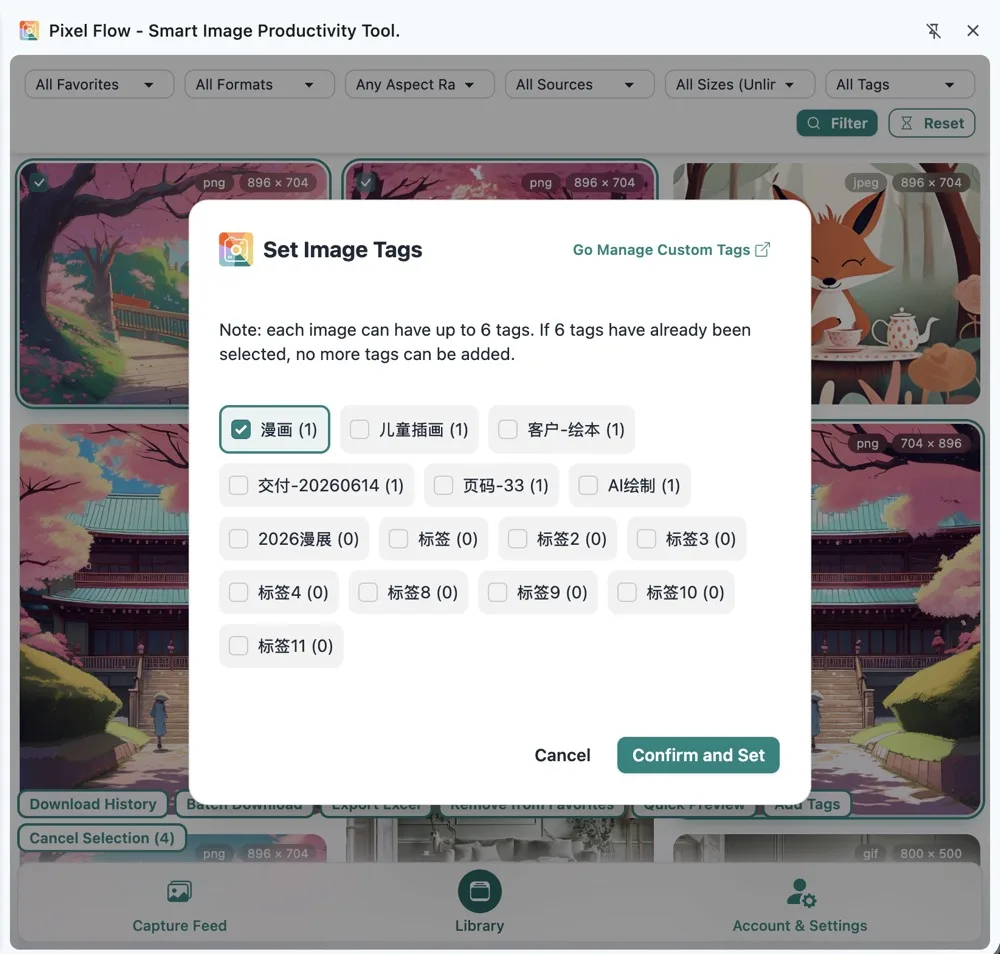
If your team does not have a tag convention yet, start with a small set of stable tags and expand gradually. For tag management and library organization, read Favorite Images and Organize with Tags and Library and Export.
Step 4: Solve the Problem of Handoffs Without Source or Responsibility
When marketing teams meet or hand images to design, media, client, or legal teams, image files alone are usually not enough. In those handoff moments, people care about where the image came from, which page it belonged to, its size and format, whether it has been favorited, when it was scanned, whether it has been downloaded, and who should confirm rights. Pixel Flow’s exported inventory is built for these handoff questions.
The Excel image inventory exported by Pixel Flow is suitable as a meeting attachment, design brief appendix, ad material checklist, or rights-review working file. It usually contains fields such as source page, original image URL, site name, page title, image Alt text, image type, width and height, copyright or author clues, usage reminders, custom tags, scan time, favorite time, download count, and latest download time. Looking at those fields, this step solves the “only images were delivered, not the evidence” problem: the team can discuss source, specs, tags, and timeline, instead of forcing the receiver to ask about every image again.

If you want to export a candidate list directly from the capture feed, read Export Excel Image Inventory. If you want to deliver image files together with source records, read Batch Download and Keep Source Records.
Different Roles Need to Care About Different Data
When the same batch of images moves through a team, different roles are not looking for the same thing. Marketing teams care more about campaign clues and competitor visual changes. Brand owners care whether images fit brand judgement. Designers care about size, ratio, and visual content. Legal or project owners care more about source, rights, and handoff evidence. Pixel Flow’s value is that it brings the fields these roles need into one reviewable inventory.
| Team role | What they care about | Pixel Flow fields and clues | Judgement supported |
|---|---|---|---|
| Marketing team | Which hero visuals, banners, and content images a competitor used in a campaign | Source page, page title, site name, image URL, dimensions, ratio, favorite time, custom tags | Decide which visual clues should enter campaign review or meeting discussion |
| Brand owner | Whether the image fits brand direction and can be used as internal reference | Quick preview, image Alt text, page title, channel tags, visual-role tags, review-status tags | Separate images that can continue to discussion from observation-only, off-direction, or unconfirmed material |
| Design team | Whether the image is clear, and whether its ratio and specs are useful as reference | Image type, width, height, ratio, format, image Alt text, quick preview, source page | Shortlist candidates for mood boards, layout reference, or design briefs |
| Content or media team | Which page and communication context the image belongs to, and whether it maps to copy or channel | Page title, source page, channel tags, campaign tags, image URL, download history | Identify whether an image belongs to an official site, landing page, social ad, content page, or ad reference page |
| Legal or brand compliance owner | Whether there are rights, trademark, portrait, or third-party asset risks | Source site, original image URL, copyright or author clues, usage reminder, review-status tags, exported inventory | Build a rights-review working file and flag images that should not be published directly |
| Project owner | Which records should be kept, and which images have already been handed off or downloaded | Favorite time, scan time, download count, latest download time, exported Excel inventory, custom tags | Track whether project materials are complete and reduce repeated follow-up after meetings |
In short, for brand teams, the most valuable outcome is not “how many images were saved.” It is that every image can be explained in its original context: why it was saved, where it came from, which discussion it belongs to, and who needs to confirm the next step. The fields Pixel Flow provides are meant to help different roles use the same materials to complete the next review and confirmation more smoothly.
Rights Boundaries
Favoriting, downloading, and exporting do not equal authorization. Pixel Flow records source clues and image information. It does not mean the image can be used for publishing, ad placement, commercial promotion, client delivery, redistribution, or training data.
Internal observation, competitor review, campaign asset organization, design communication, source tracing, and rights-confirmation preparation.
Before placing third-party images into proposals, ads, official sites, social posts, client deliverables, or public reports, confirm the allowed usage scope.
Do not treat competitor images, portrait images, brand marks, media images, or unclear-source material as owned publishable assets.
If your team needs shared rules, continue with Responsible Use and Permissions and Boundaries.
FAQ
Q: Can I download competitor images and put them in a brand proposal?
They can be used as internal observation material or meeting reference, but they should not be assumed usable for external proposals, ad placement, official-site publishing, client delivery, or similar scenarios. If a proposal will be sent to clients, partners, or public channels, use owned assets, licensed assets, or clearly label them as “competitor observation reference,” and confirm the rights boundary according to your team’s rules.
Q: How do we avoid mistaking competitor images for publishable assets?
Use tags to clearly separate status labels such as “Observation Only,” “Rights Needed,” “Do Not Publish,” and “Owned Asset.” When exporting an inventory, keep the source page and usage reminder fields so design, content, media, or client-facing teams see the image status instead of receiving files without context.
Q: Why are some landing page images missing from the capture feed?
Common reasons include images that have not loaded yet, images inserted later by page scripts, images inside collapsed modules, images smaller than your capture threshold, or site access restrictions. Scroll the page until the image is displayed, then rescan. For a fuller checklist, read Rescan and Missing Images Troubleshooting.
Q: Can the exported Excel replace rights review?
No. The Excel inventory is a review working file. It helps preserve source pages, image URLs, dimensions, formats, tags, and usage reminders. The actual rights judgement still needs contracts, asset licenses, platform rules, brand guidelines, portrait rights, and trademark-use restrictions.
Q: Should marketing teams clean up the library after a project ends?
Yes. After a project ends, keep campaign-review records, confirmed owned assets, and source records that still need follow-up. Remove temporary observation images that are no longer needed. If you are worried about deleting useful records, export a backup first. See Backup and Migration.
Related Docs
- Capture Page Images in Bulk
- Open the Side Panel and Scan Automatically
- Filter by Format, Ratio, Source, and Resolution
- Rescan and Missing Images Troubleshooting
- Favorite Images and Organize with Tags
- Export Image Inventory
- Batch Download and Keep Source Records
- Source and Rights Clue Records
- Responsible Use