
Docs
Pixel Flow user manual and best practices
Find scanning, filtering, image details, library, export, account, and industry workflow guidance by task.
Page images are not entering the capture feed
If you can clearly see an image on a web page, but it does not appear in the capture feed, do not immediately treat it as a detection failure. Pixel Flow only organizes image clues that have loaded on the current page, entered the visible area, and can be read by the extension. Filters and the collection filter threshold can also temporarily hide images from the list.
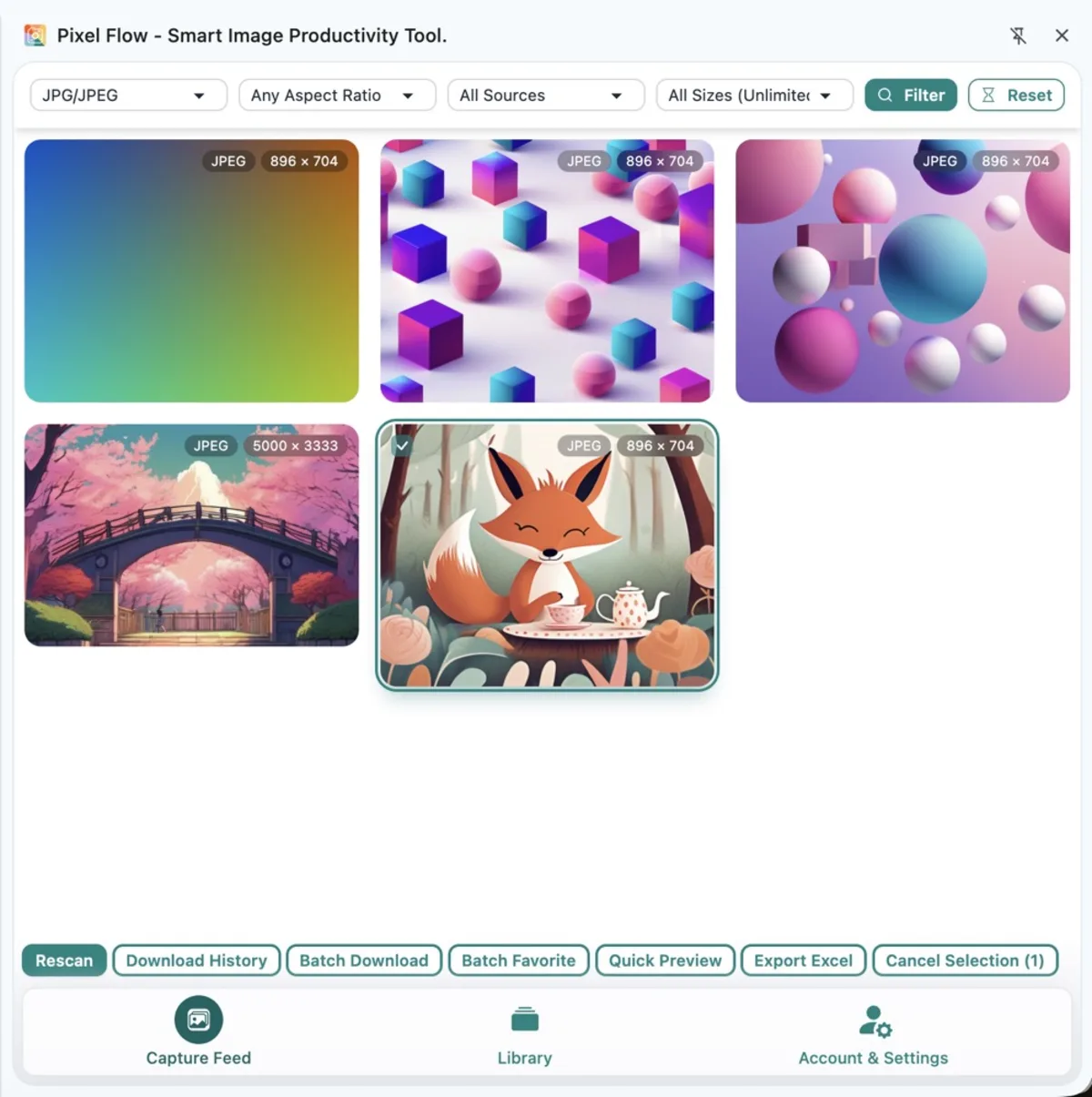
Try these steps first
- Confirm that the capture feed is open. When you open it from the extension icon in the upper-right corner of the browser or Manage Current Page Images in the context menu, Pixel Flow captures images from the current page.
- Scroll to the area where the target image appears. After the image is clearly visible, return to the capture feed in the extension sidebar and check whether the image appears in the list. If it still does not appear, continue with the next step.
- Reset all filters in the capture feed so the image is not hidden by the current filter settings. If it still does not appear, continue with the next step.
- If you have configured a collection filter threshold on the settings page, temporarily lower it or remove overly strict width and height limits. Then check whether the image appears in the capture feed. If it still does not appear, continue with the next step.
- If the image is already visible on the page but the list still does not update, click Recapture at the bottom of the capture feed. If the image still does not appear after recapturing, please contact support.
How to read common symptoms
| What you see | More likely reason | Suggested action |
|---|---|---|
| The image is missing when the page first opens, but appears after scrolling | The site uses lazy loading, and the image had not loaded yet | Scroll to the target area, wait until the image is clearly visible, then return to the capture feed and check whether it appears |
| The capture feed has many images, but the target image is missing | Filters are too narrow, or the threshold hides it | Reset filters and check the collection filter threshold |
| The list shows a low-resolution image instead of the high-resolution one | The page currently exposes only that size, or the high-resolution URL is in responsive image candidates | Open details and check image sources and size variants |
| One specific website is consistently incomplete | Page structure, logged-in resources, temporary URLs, or anti-hotlinking affects reading | Keep the page URL and screenshots, then contact support |
| The page shows video frames, canvas visuals, or masked images | It may not be a regular image file | Try context-menu deep parsing, or provide page information for support review |
What the capture feed can detect
Pixel Flow first recognizes common image forms on web pages, including regular images, responsive images, some background images, and inline vector images. For script-rendered visuals, video frames, cross-origin embedded pages, or special masks, whether Pixel Flow can read them depends on what image clues the page actually exposes.
This is why “I can see the image” and “the extension can read the image file” are not always the same thing. What you see is the browser’s rendered result. Pixel Flow still needs a readable image URL or image data before it can open details, download, or analyze the image.
Technical Notes
If you are not a technical user, you can skip this section. It does not affect normal Pixel Flow usage.
This section explains web loading behavior and browser security boundaries. It is not a manual step you must perform:
- Lazy-loaded images may only request the file when they are close to the visible area. For the standard behavior, see MDN’s
imgloading attribute. - Cross-origin embedded pages and protected resources can be affected by the browser same-origin policy. See MDN’s same-origin policy.
- If a page draws visuals with
canvas, the canvas itself may not preserve the original image URL. For the element background, see MDN’scanvasdocumentation.
When to contact support
If you have scrolled to the target image, reset filters, clicked Recapture, and the same page still fails to capture the image, submit the page URL, target image screenshot, capture feed screenshot, and reproduction steps through Contact Support.